Communication & Marketing
Team Chat: Message Your Crew and Office Without Leaving Servgrow
Keep your office and field crew talking inside Servgrow: one-on-one chats, named groups and a chat for every job, with @mentions, photos and files, on the web and in the mobile app.
Updated November 4, 2026 · 3 min read
A gate code lost in someone's personal texts, a tech who never heard the job moved, a supply run nobody claimed: small gaps like these cost real time every day. Team Chat keeps your office and field crew talking inside Servgrow, on the web and in the mobile app. Message one person, a whole crew, or everyone on a job, and the conversation stays with your business instead of scattered across phones.
Open Team Chat
Click the envelope icon at the top right of any page to open the Message Center.
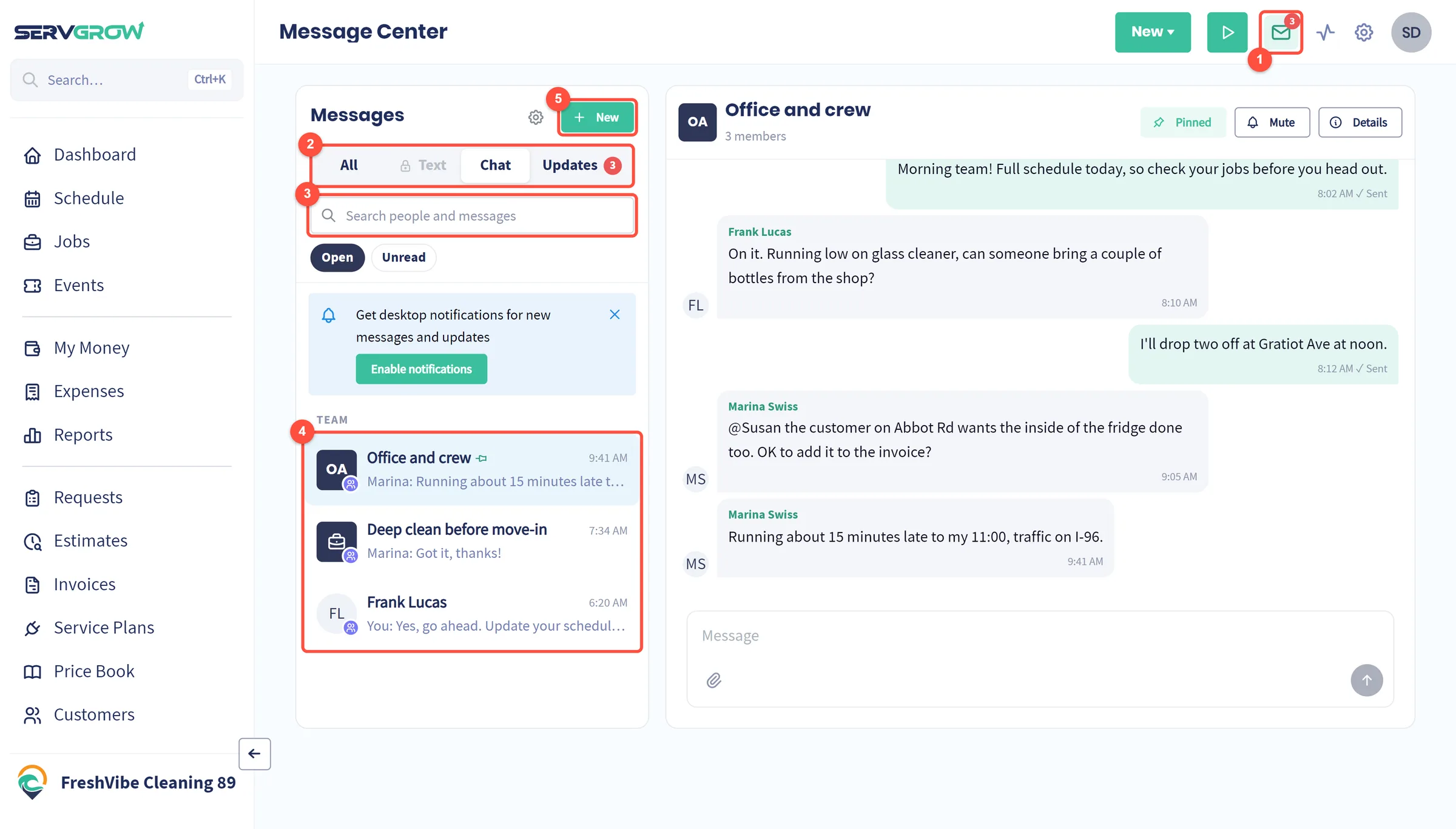
- The envelope icon opens the Message Center. The red number counts what you have not read yet.
- The tabs: All, Text (texts with customers, once 2-Way Text is set up), Chat (your team chats) and Updates (alerts about your jobs; see Team Notifications).
- Search people and messages finds a chat by name or by something someone wrote.
- Your chats. A pin marks a chat pinned to the top, a briefcase marks a job chat, and the badges show unread messages and an @ when someone mentioned you.
- New starts a conversation.
Talk to your team
Click a chat to open it.
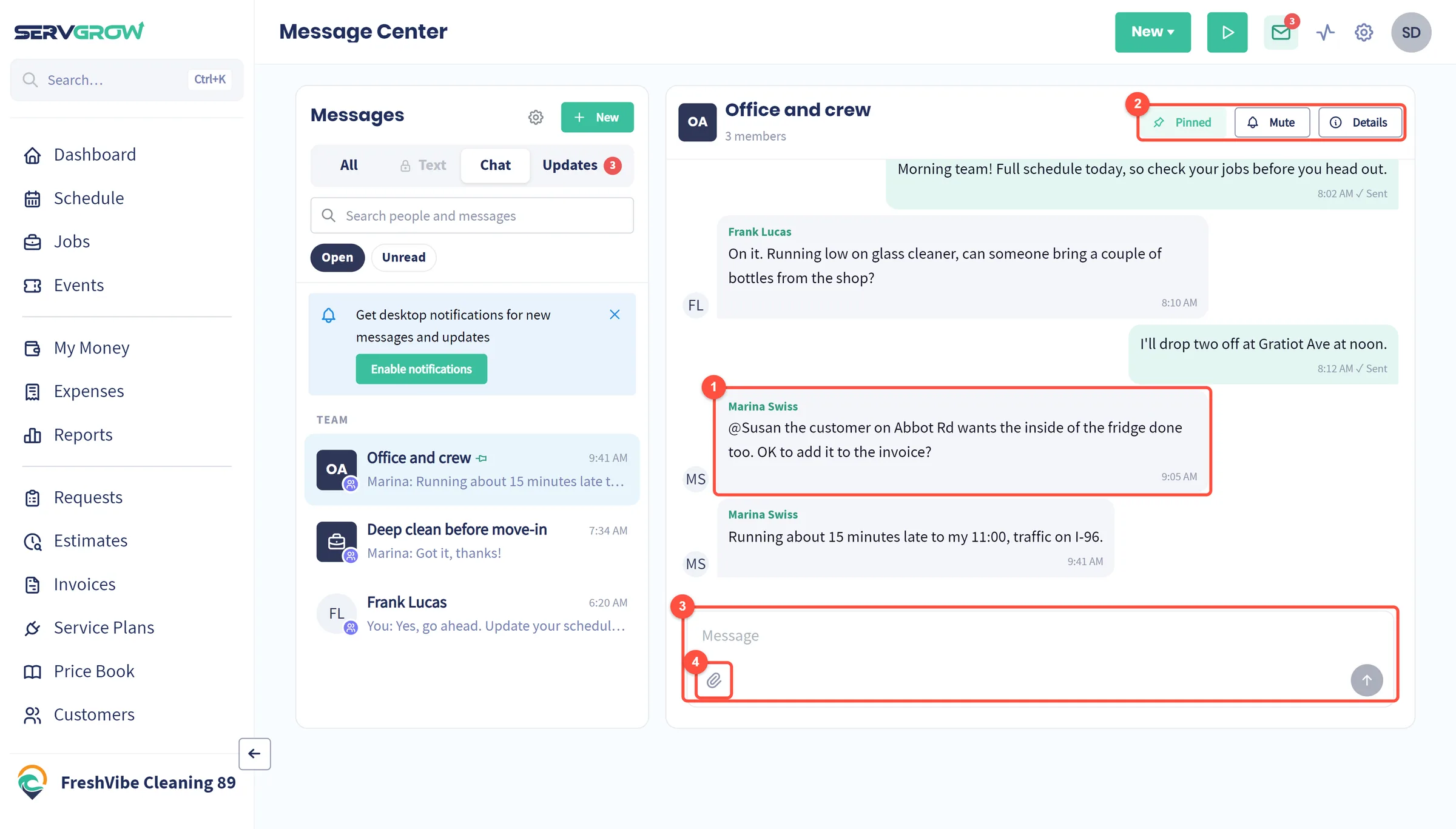
- Messages show who sent them and when. Your own messages sit on the right. Type @ and a name to mention a teammate, so they get a notification even if they muted the chat.
- Pin keeps the chat at the top of your list, Mute stops its alerts, and Details shows the members.
- Write your message here and press the arrow to send it.
- The paper clip attaches photos and files, such as a picture of the finished work.
You can also react to a message with an emoji, reply to it, forward it, copy its text, and edit or delete your own messages.
Start a chat or a group
Click New in the Message Center.
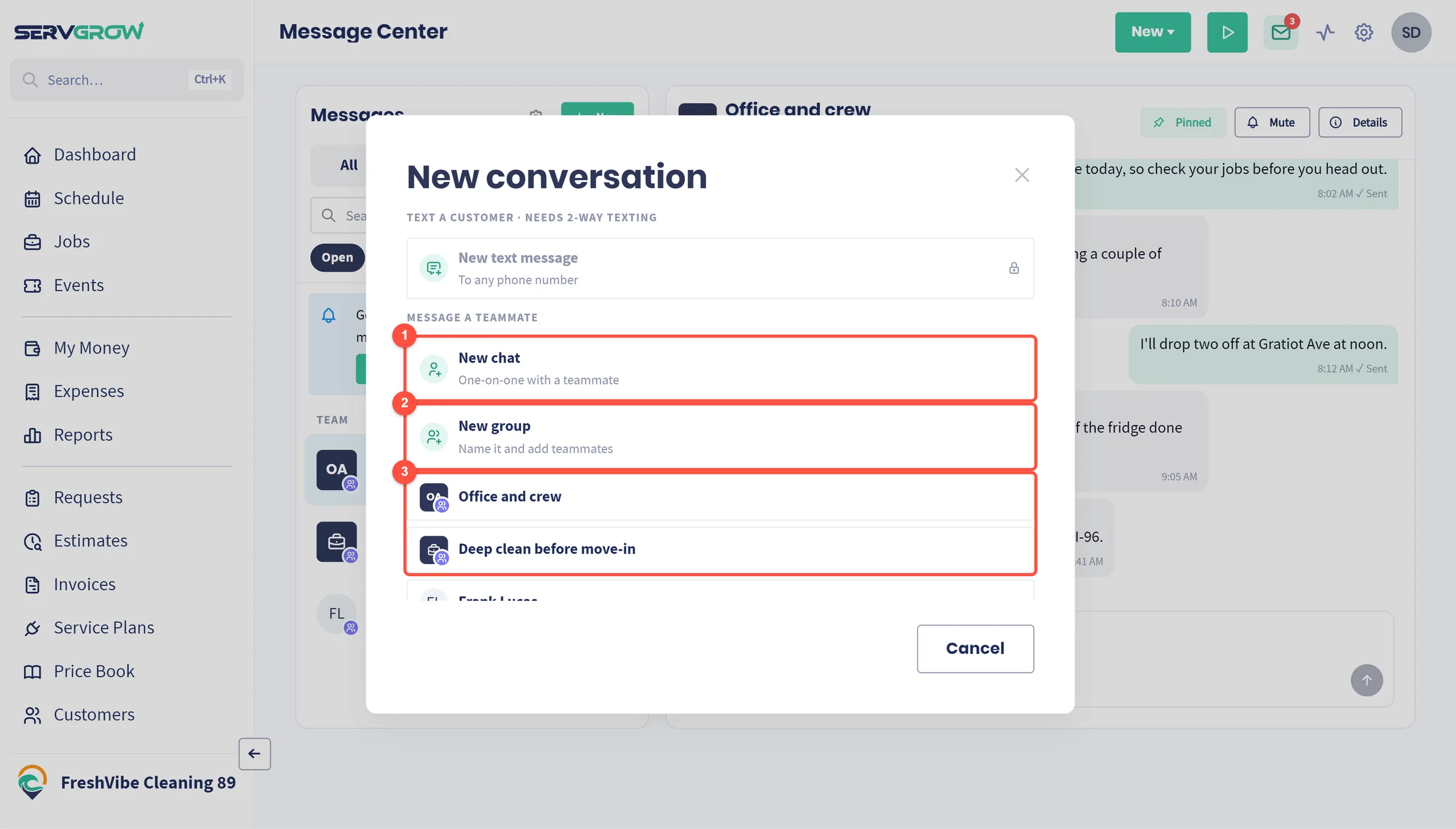
- New chat: a one-on-one conversation with a teammate.
- New group: a chat with a name and several teammates, such as your install crew.
- Your recent chats are listed too, so you can jump straight back into one.
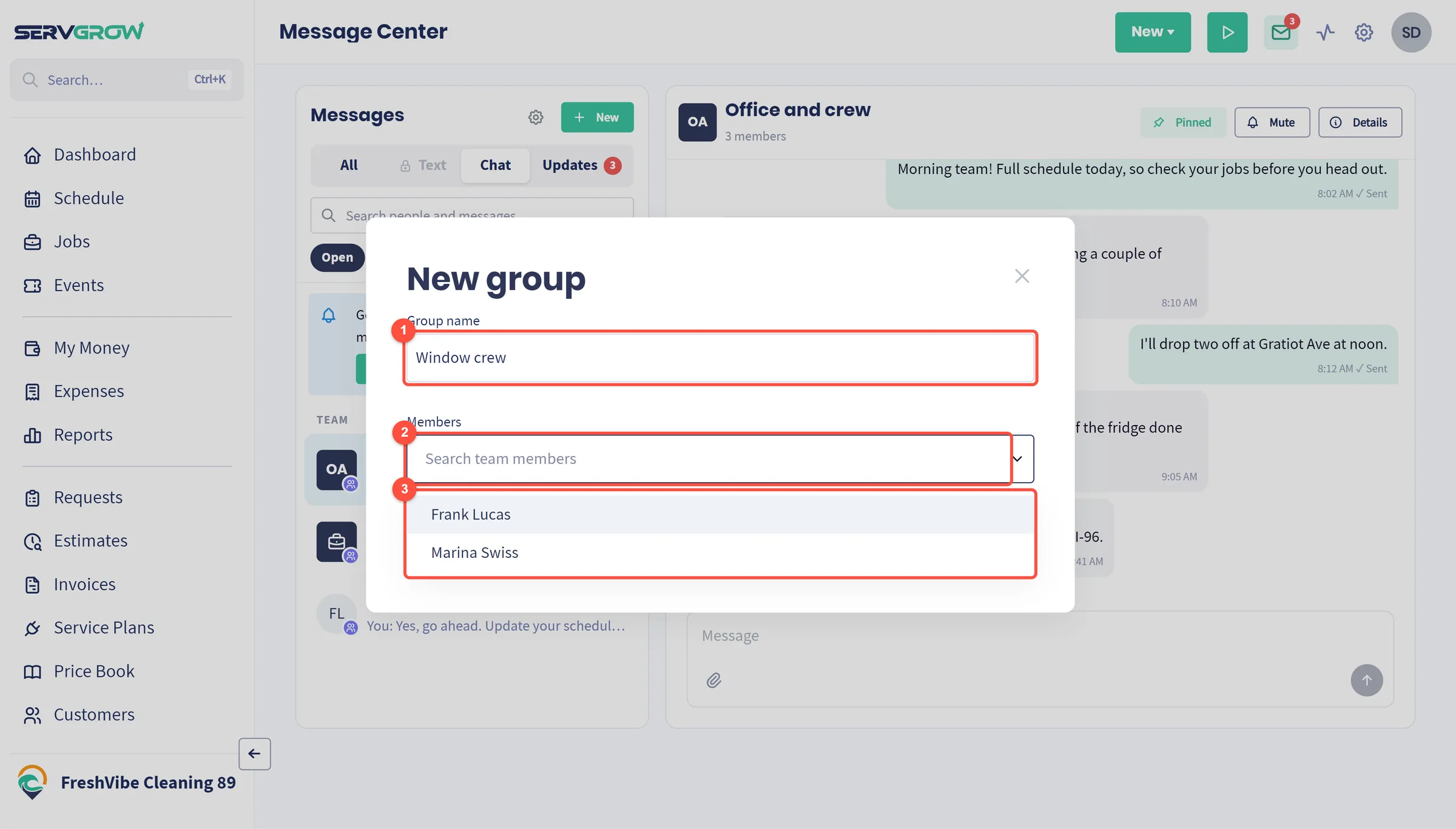
- Give the group a name.
- Click Members and pick the teammates to add, or type to search for them.
- Pick each person from the list, then click Create group.
Chat with everyone on a job
Every job has its own chat with the team assigned to it, so job details stay with the job.
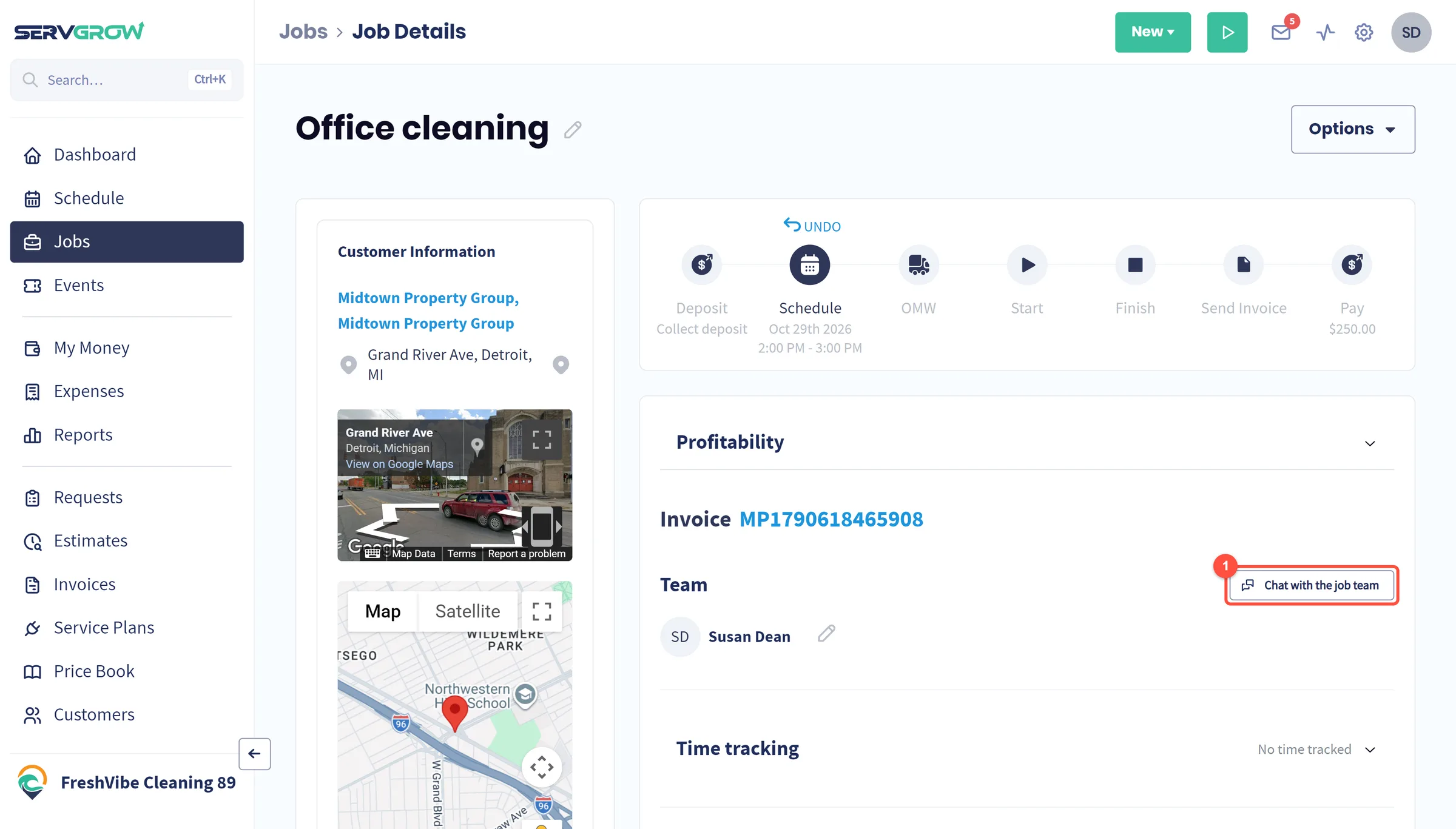
- Open the job and click Chat with the job team. The chat also shows in the Message Center, marked with a briefcase and the job number.
Manage a group
Open the group and click Details.
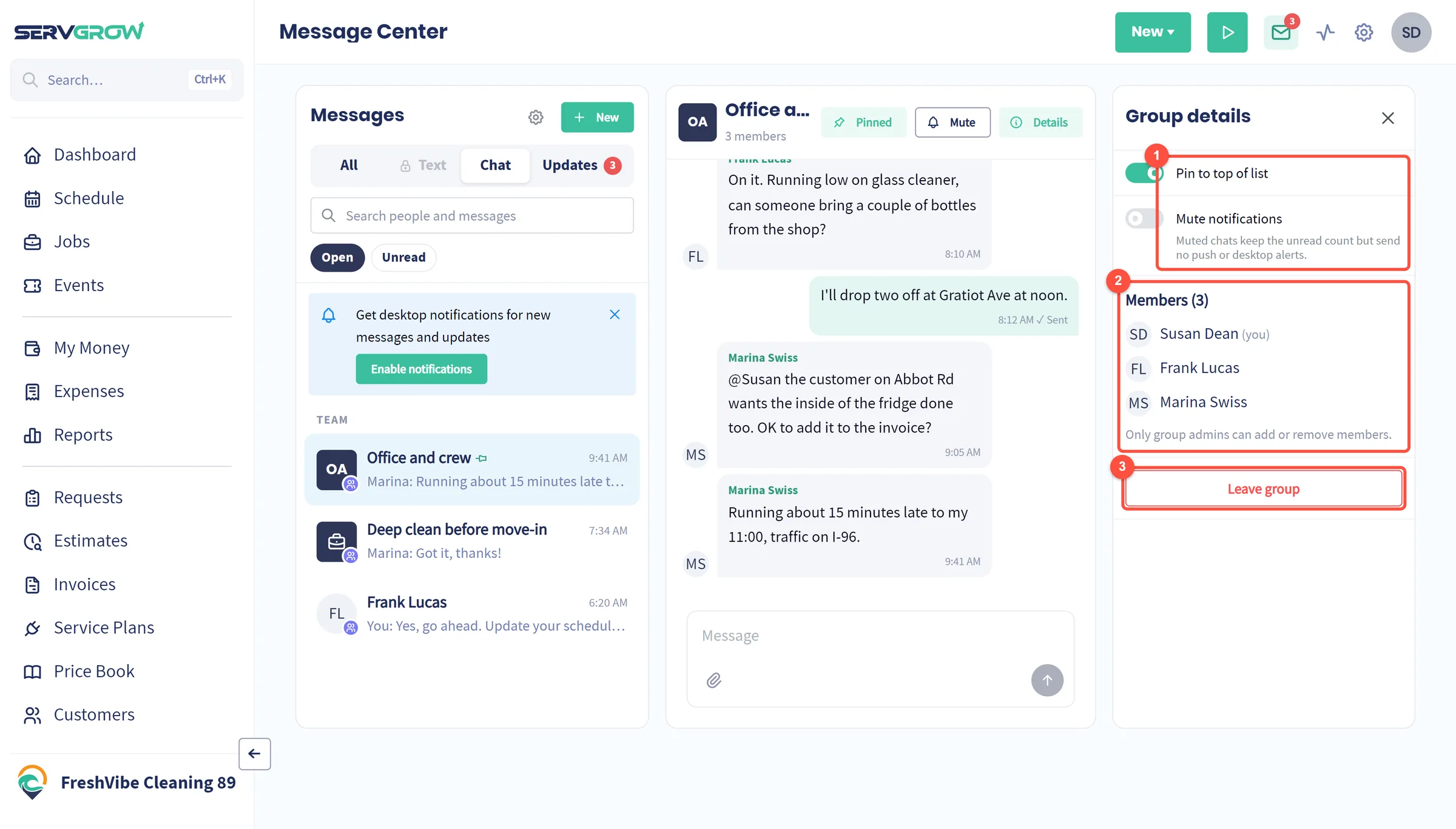
- Pin to top of list and Mute notifications. A muted chat still counts unread messages but sends no push or desktop alerts.
- The members. Group admins can rename the group, add and remove people, and make someone else an admin.
- Leave group takes you out of the chat.
How long messages are kept
Company Admins choose how long team chat messages are kept. Click Settings, then Message Center.
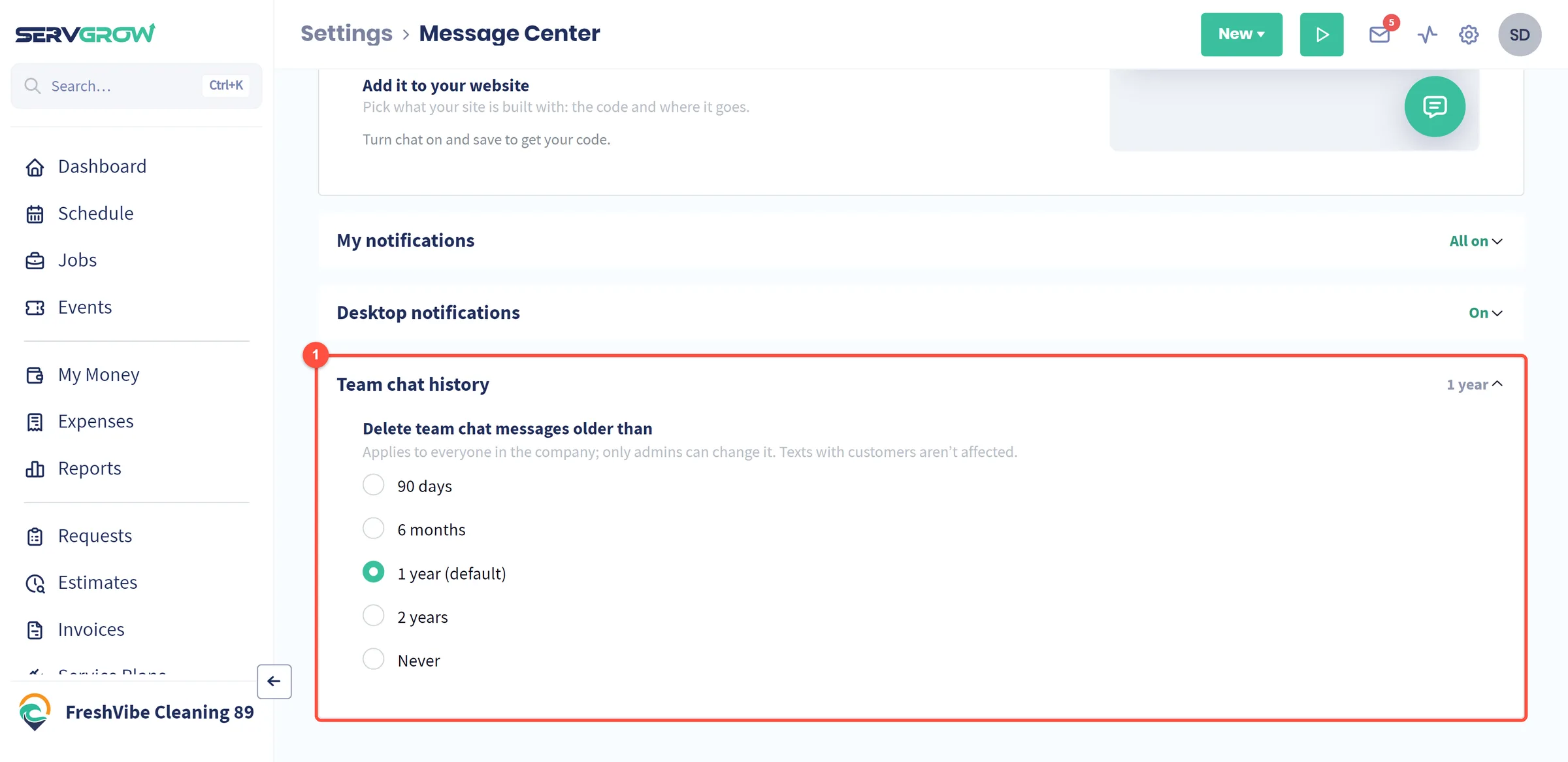
- Team chat history: delete team chat messages older than 90 days, 6 months, 1 year (the default), 2 years, or never. It applies to everyone in the company, and texts with customers are not affected.
Tips
- Turn on desktop notifications. Click Enable notifications in the Message Center so a new message pops up even when you are on another page.
- Put job details in the job chat. Gate codes, parking notes and customer requests stay with the job instead of in someone's personal texts.
- Mention instead of hoping. An @mention reaches the person even if they muted the chat.
- Install the mobile app. Your crew gets push notifications for messages on their phones.
Related articles
Was this article helpful?