Scheduling & Dispatch
Team Notifications: Tell Your Crew the Moment a Job Changes
Make sure nobody drives to a canceled job: choose which job, estimate, event and time off changes reach your team by push, desktop, Message Center, text or email, and let each person quiet the channels they do not want.
Updated November 4, 2026 · 3 min read
When the office moves a job, the tech on it should not find out by driving to an empty driveway. Team Notifications tell everyone the moment a job, estimate or event they are on is scheduled, moved, reassigned or canceled, by push on their phone, on their desktop, in the Message Center, or by text and email. You choose which changes go out and how, and each person can quiet the channels they do not want.
Choose what your team hears about
Click Settings, then Communication, then the Team Notifications tab.
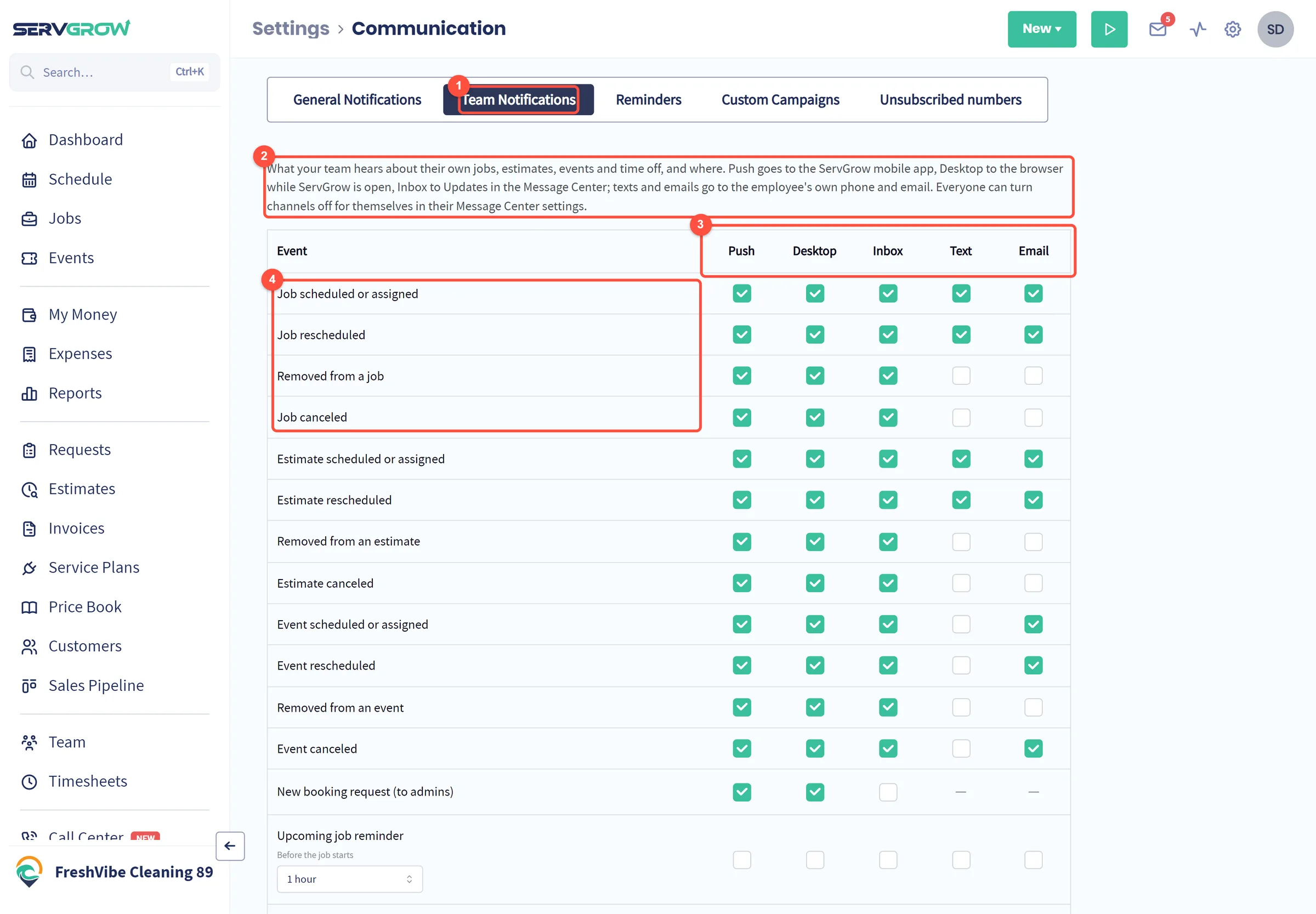
- Open Team Notifications.
- These settings cover what each team member hears about their own jobs, estimates, events and time off.
- The channels:
- Push: a notification from the Servgrow mobile app on their phone.
- Desktop: a pop-up in their browser while Servgrow is open.
- Inbox: an entry under Updates in their Message Center.
- Text and Email: sent to the team member's own phone number and email.
- Tick the channels for each change. For jobs these are Job scheduled or assigned, Job rescheduled, Removed from a job and Job canceled. Estimates and events have the same four.
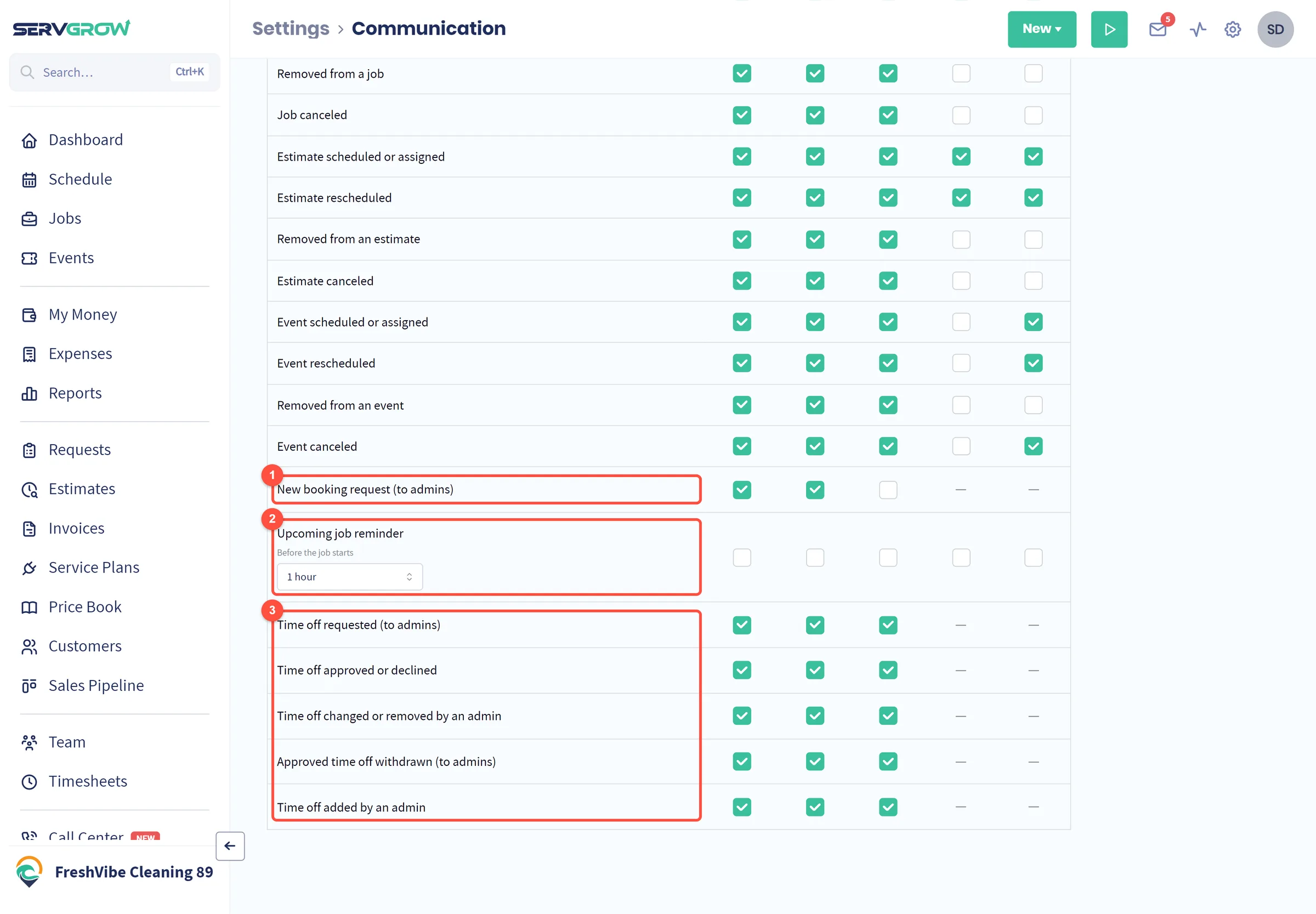
- New booking request (to admins): tells admins when a customer books online.
- Upcoming job reminder: a nudge before each job starts. It is off until you tick a channel. Pick how long before the job it goes out, such as 1 hour.
- Time off: requests go to admins, and the team member hears when their time off is approved or declined, or changed, removed or added by an admin.
See your updates in the Message Center
Click the envelope icon at the top right, then the Updates tab.
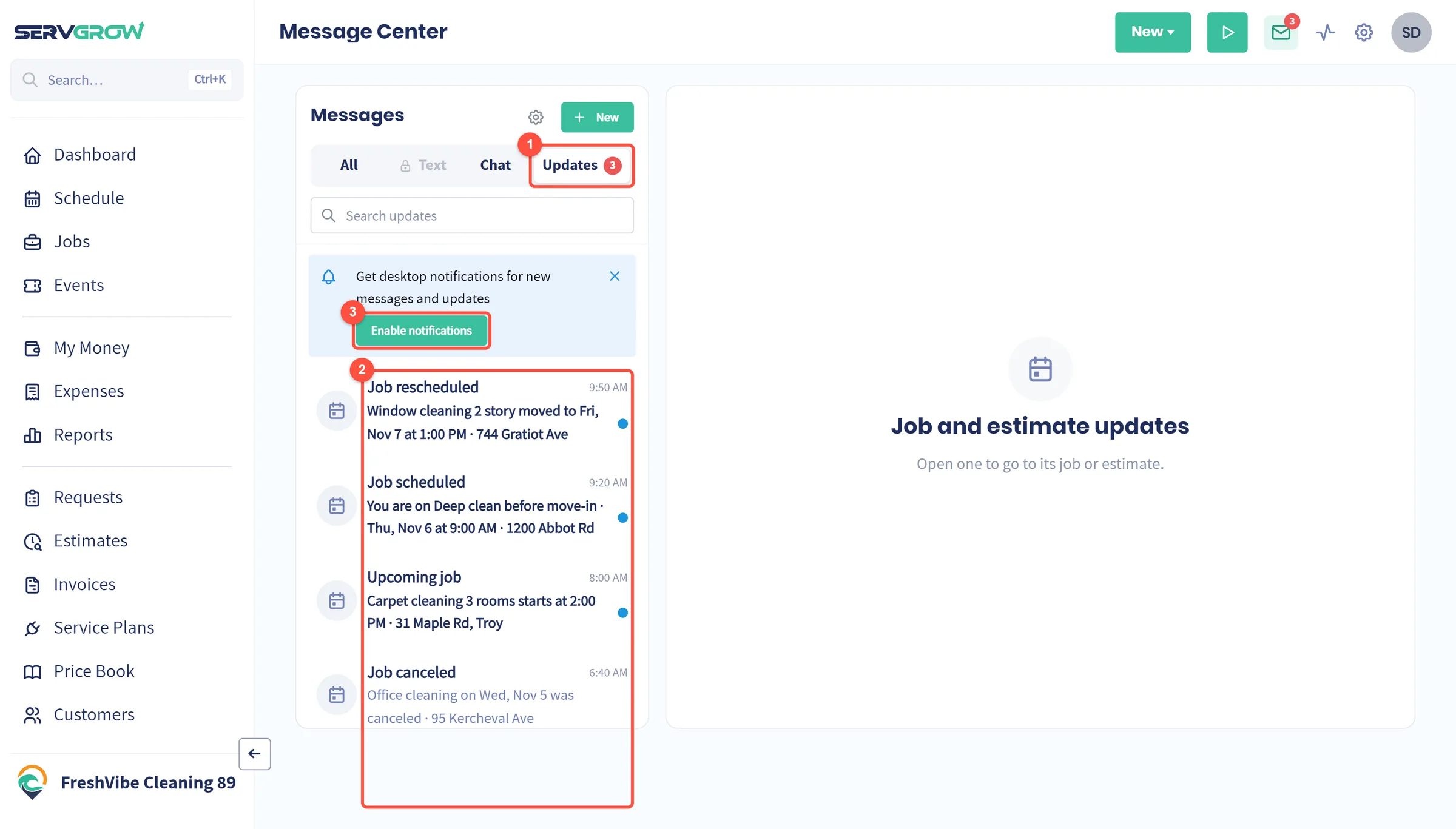
- Updates lists the changes to your work from the last 14 days. The number shows how many you have not seen.
- Each update says what changed. Click one to open that job, estimate or event, or the schedule.
- Enable notifications lets this browser show desktop pop-ups for new messages and updates.
Turn channels off just for you
Anyone can quiet the notifications they do not want, without changing them for the rest of the team. Click Settings, then Message Center.
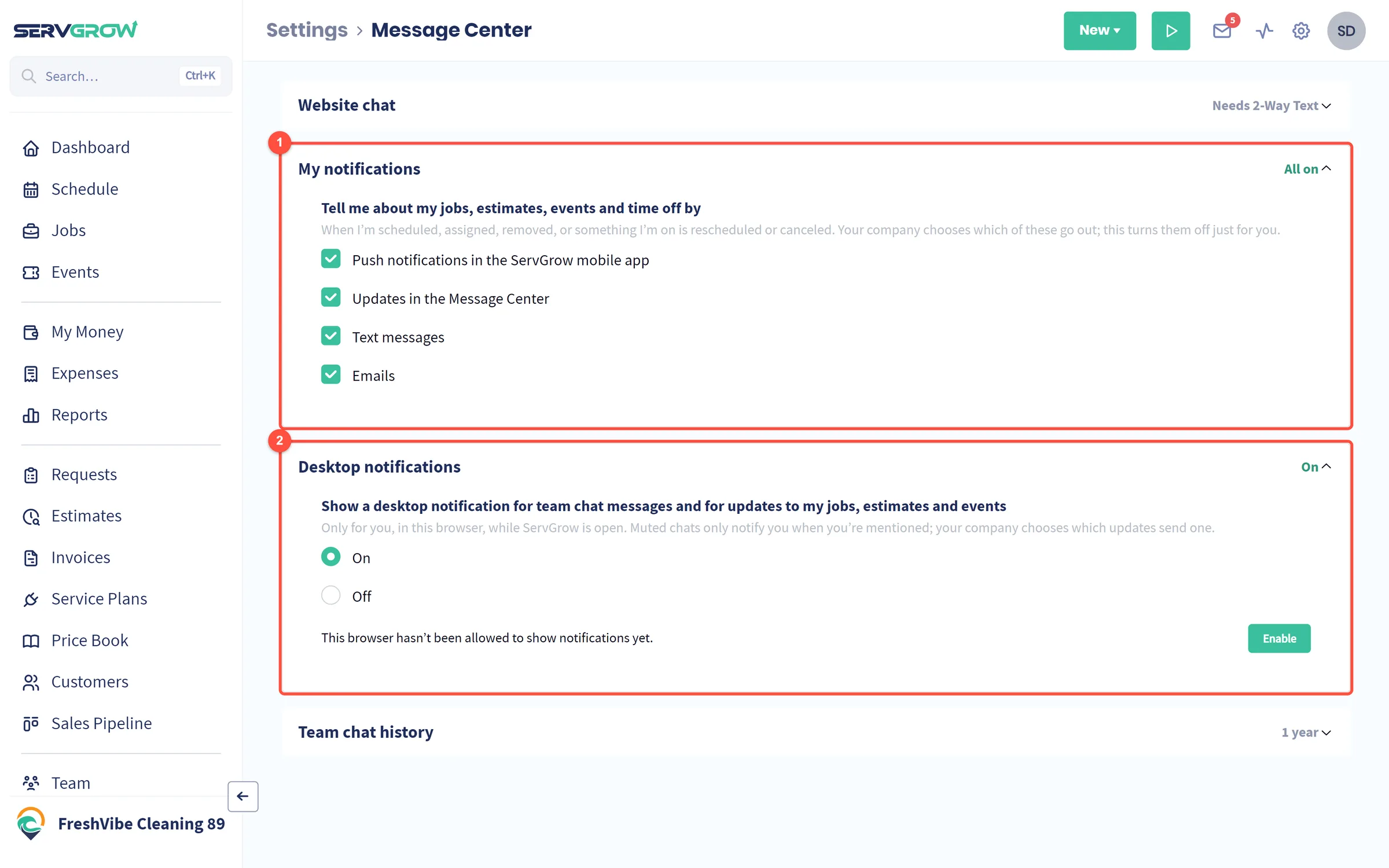
- My notifications: choose how you hear about your jobs, estimates, events and time off: Push notifications in the mobile app, Updates in the Message Center, Text messages and Emails. Your company decides which notifications go out; unticking one only turns it off for you.
- Desktop notifications: On shows a pop-up in this browser for team chat messages and updates to your work while Servgrow is open. Muted chats only notify you when someone mentions you. If the browser has not been allowed to show notifications yet, click Enable. If it blocked them, click the icon left of the address bar, set Notifications to Allow and reload the page.
Tips
- Get your field team on the mobile app. Push is the fastest way to reach someone on a job site.
- Keep texts for the big changes. Text and email suit reschedules and new assignments; leave them off for the rest so they still get noticed.
- Use the upcoming job reminder for crews who juggle several jobs a day.
- Team chat is separate. Messages in Team Chat notify people on their own; these settings cover changes to jobs, estimates, events and time off.
Related articles
Was this article helpful?