Invoices & Getting Paid
Add a Card on File
Save cards to customer profiles for instant online billing, faster checkouts, and secure, repeat payments across every job.
Updated September 11, 2026 · 1 min read
When cash flow flows, everything grows.
Card on File turns “I’ll pay later” into “Done.” Save a card once, then collect deposits, set up auto pay, process payments, and final invoices in seconds, no awkward follow-ups, no chasing checks. Techs finish jobs and tap “charge,” office staff batch-bill at day’s end, and owners finally see clean books with fewer write-offs. It’s faster funding, fewer declines with automatic retries, and a smoother experience that customers love, because paying shouldn’t feel like a chore, it should feel invisible.
Now, let's get started.
Adding a card on file to a customer is super easy.
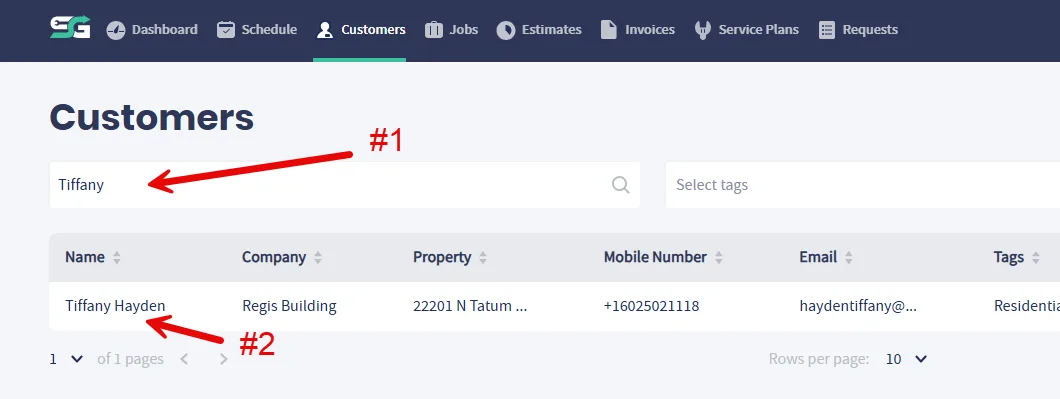
Step 1: Navigate to the 'Customers' tab

Step 2: Search and click and find the customer that you would like to add a card on file to.
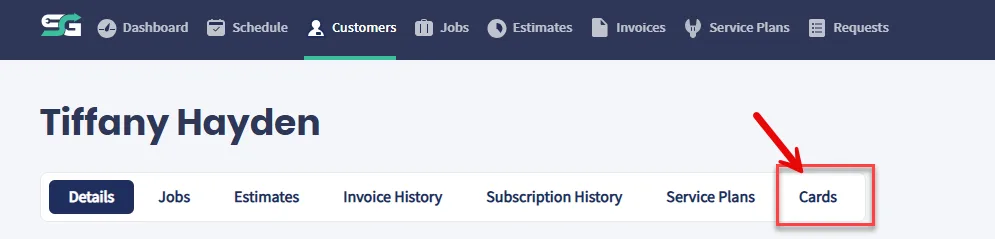
Step 3: Click 'Cards'
Step 4: Click 'Add Card'

Step 5: Add card information
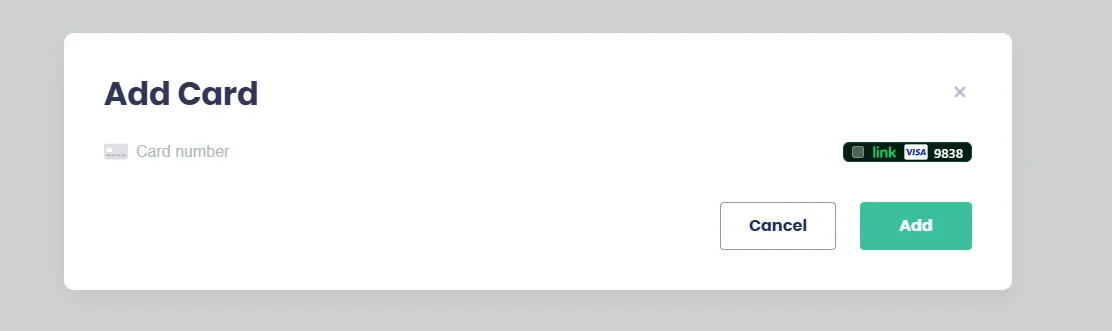
You'll need the card number, expiration date, the CVV security code and ZIP code.
That's it. You will now see the card on file.
Now you can use it to accept payments.
Related Article: Accepting Online Payments
Was this article helpful?