Invoices & Getting Paid
Tipping: Let Customers Add a Tip When They Pay Online
Give happy customers an easy way to say thank you: turn on tips for online payments in the customer portal, with an optional separate tipping step at checkout.
Updated October 8, 2026 · 1 min read
Customers who are happy with the work often want to say thank you, and a tip option makes that easy at the moment they are paying. It is extra money for your crew at no cost to you, and a simple way to reward the people who make customers happy.
Tips are offered when customers pay online, through the customer portal, so you need online card payments set up first.
Turn on tipping
Click Settings, then Invoice settings, then open Tipping.
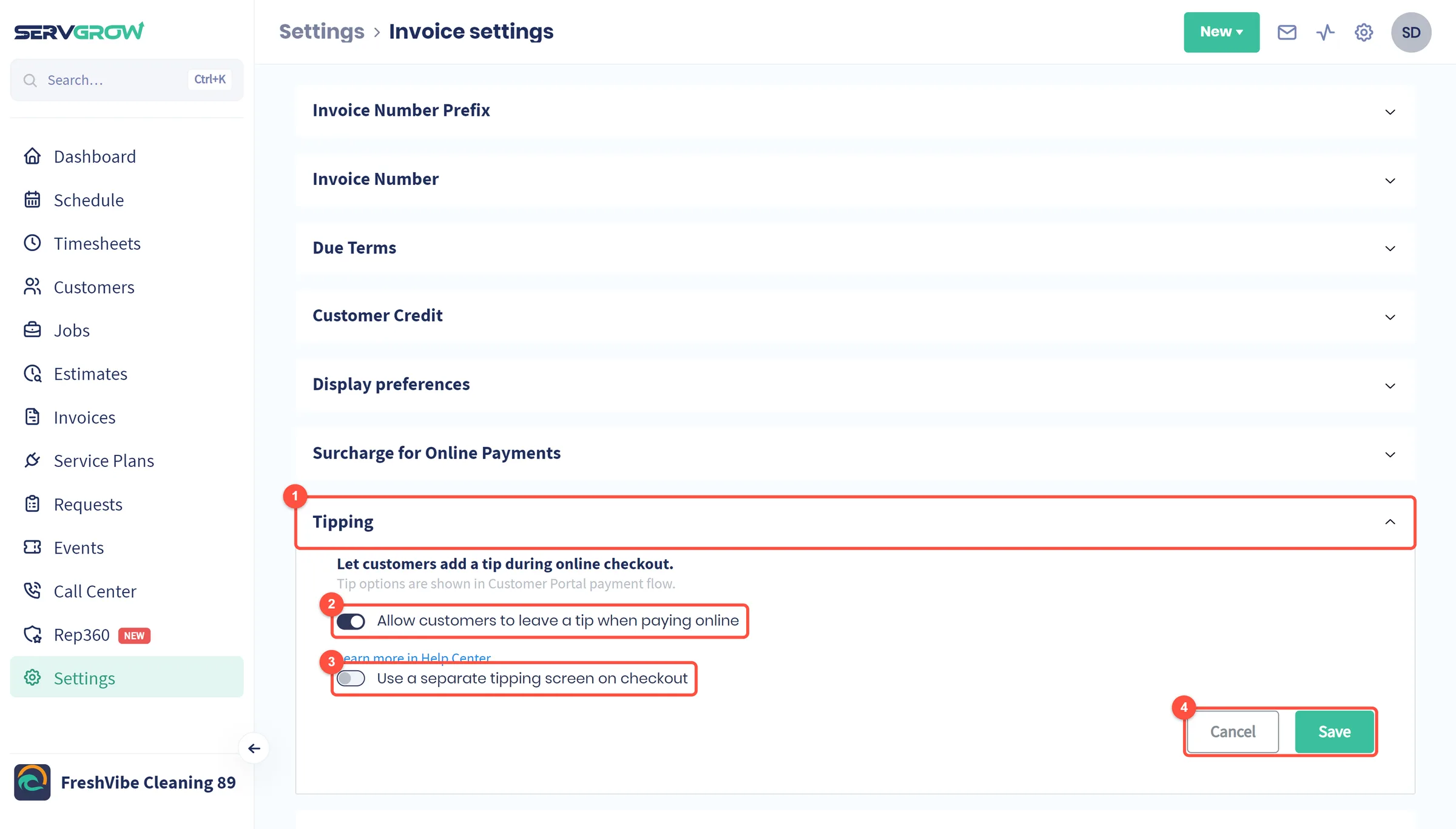
Open the Tipping section.
Switch on Allow customers to leave a tip when paying online. Tip options then appear when customers pay in the customer portal.
Use a separate tipping screen on checkout: show the tip choice on its own step instead of on the payment page, so it is harder to miss.
Click Save.
Tips
Let your crew know tipping is on. It is a small morale boost when a tip comes through.
Try the separate tipping screen if few customers tip. Giving the choice its own step usually gets more tips.
Customer credit never pays a tip, so a customer with credit still pays the tip by card.
Related articles
Was this article helpful?