Price Book & Estimates
Import Your Price Book From a Spreadsheet: Load Every Service and Price at Once
Skip typing items one by one: fill in the Price Book template with your services, materials, prices and costs, import it in one go, and export your Price Book any time as a backup.
Updated November 3, 2026 · 3 min read
Already keep your services and prices in a spreadsheet, or in your old software? Load them all into your Price Book in one go instead of typing each item. Once they are in, every estimate, job and invoice can pick from them, and your online booking forms can offer them to customers.
Open Import / Export
Click Price Book in the left menu.
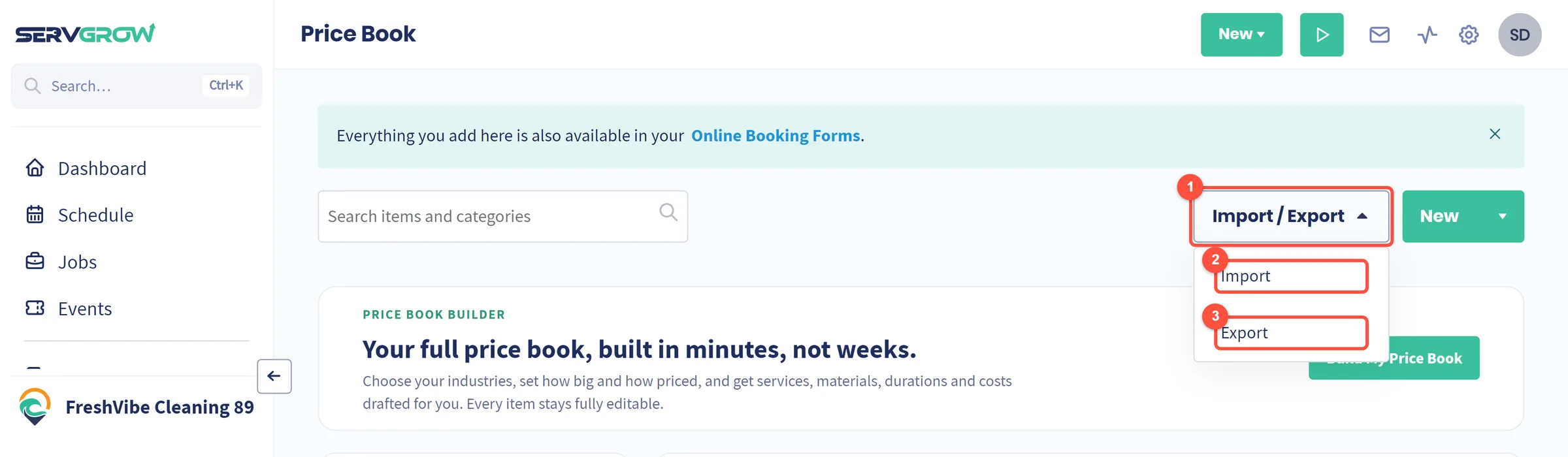
- Click Import / Export.
- Import: bring in items from a CSV file.
- Export: download every item in your Price Book to a file called price-book-items.csv straight away.
Import your items
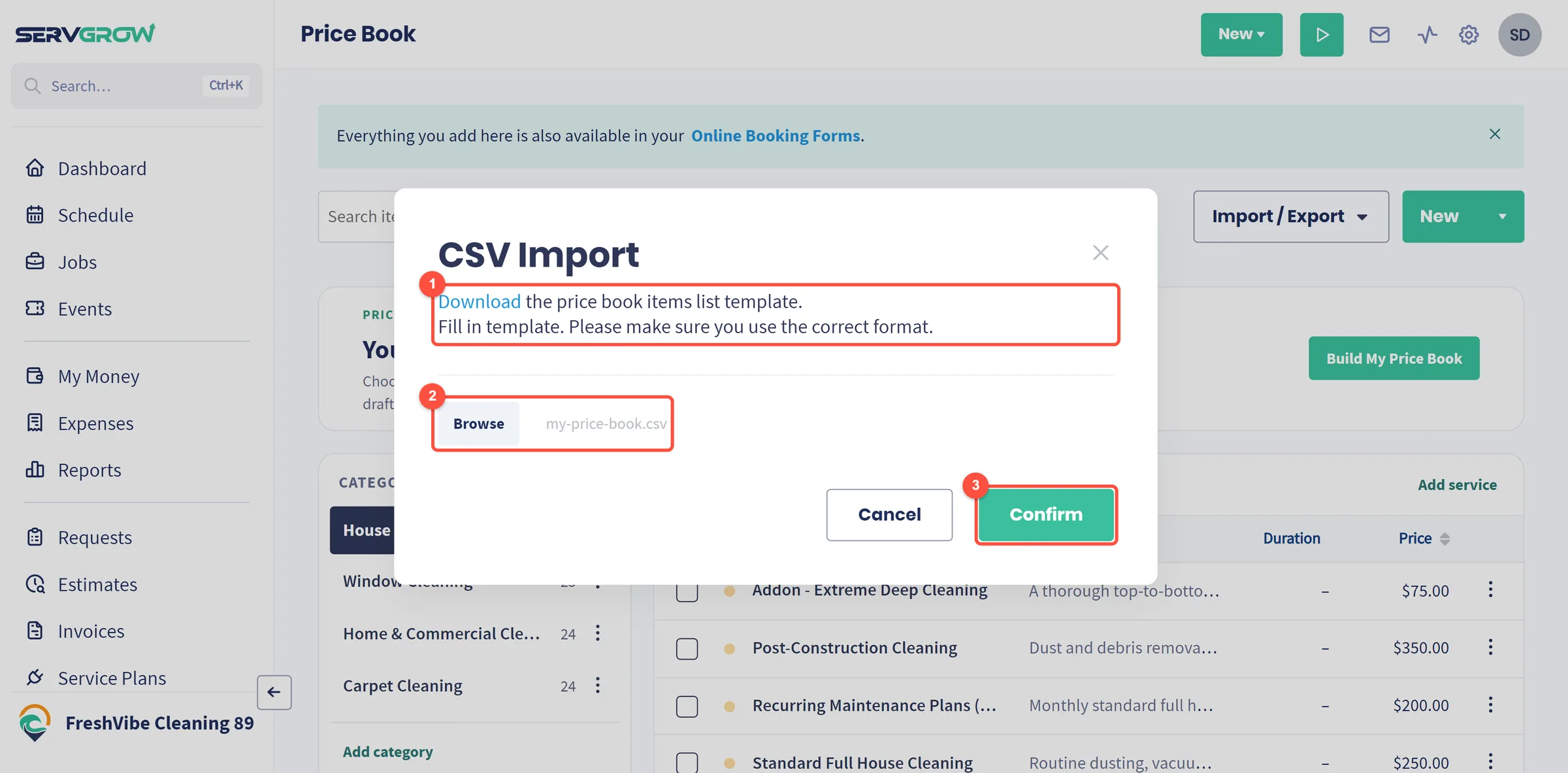
- Click Download to get the template (price-book-items-template.csv). Open it in Excel, Google Sheets or Numbers. It has one sample item in the second row showing the format; replace it with your own items, one item per row, and keep the column headings exactly as they are.
- Save the file as CSV, then click Browse and choose it. The file name appears next to the button.
- Click Confirm. Servgrow tells you when your items are imported, and they appear in your Price Book.
What goes in each column
- Name: the item name your customers see on estimates and invoices, such as Standard House Cleaning.
- ItemType: Service for work you do, or Material for supplies you charge for.
- CategoryName: the Price Book category the item belongs in, such as House Cleaning. Spell it the same way as the category in your Price Book.
- Color: the color of the dot next to the item in your Price Book. Keep yellow, as in the sample, if you are not sure; you can change colors later on each item.
- UnitCostType: what the price is for: Each, Hour, SqFt (square feet), Gallon, Meter or Kilogram.
- Taxable: TRUE if sales tax applies to the item, FALSE if not.
- Cost: what the item costs you, as a plain number with no $ sign. Servgrow uses it to show your profit on jobs. Put 0 if you do not track it.
- Price: what you charge the customer for one unit, as a plain number, such as 250 or 0.45 per square foot.
- Description: the details that print under the item name on estimates and invoices.
What an export contains
The export has the same columns as the template, plus each item's duration in minutes (DurationMinutes). That makes it a full backup of your Price Book, and an easy way to review every price in a spreadsheet. The template has no duration column, so set durations on each item in the Price Book after you import.
Tips
- Start from an export. Export your Price Book first: you get a file with the right headings and your current items to copy the format from.
- Import a few items first. Try three or four rows, check them in the Price Book, then import the rest.
- Avoid duplicates. Remove items you already have from the file before you import. To change prices on items that are already in your Price Book, tick them and use Edit prices and tax instead.
- No spreadsheet yet? The Price Book Builder can draft a full price book for your trade in minutes.
- Moving from other software? Jobs > Import brings over your customers, past jobs and invoices too.
Related articles
Was this article helpful?