Reports & Integrations
How to Connect QuickBooks With Servgrow
Seamlessly connect and integrate your QuickBooks account with Servgrow.
Updated October 4, 2022 · 1 min read
One of the most popular accounting software available on the market is QuickBooks. Connecting QuickBooks with Servgrow enables continuous one-way sync of Jobs and Customer Data to form your account your QuickBooks Account. All data entry is automated, and no need to access your QuickBooks for the same job data again. All customer's jobs and history also can be accessed by connecting QuickBooks.
Are you ready to connect your QuickBooks account? Here's how you can do it:
Note: Before proceeding to the steps below, please note that this feature only works with QuickBooks Essential Plans or higher.
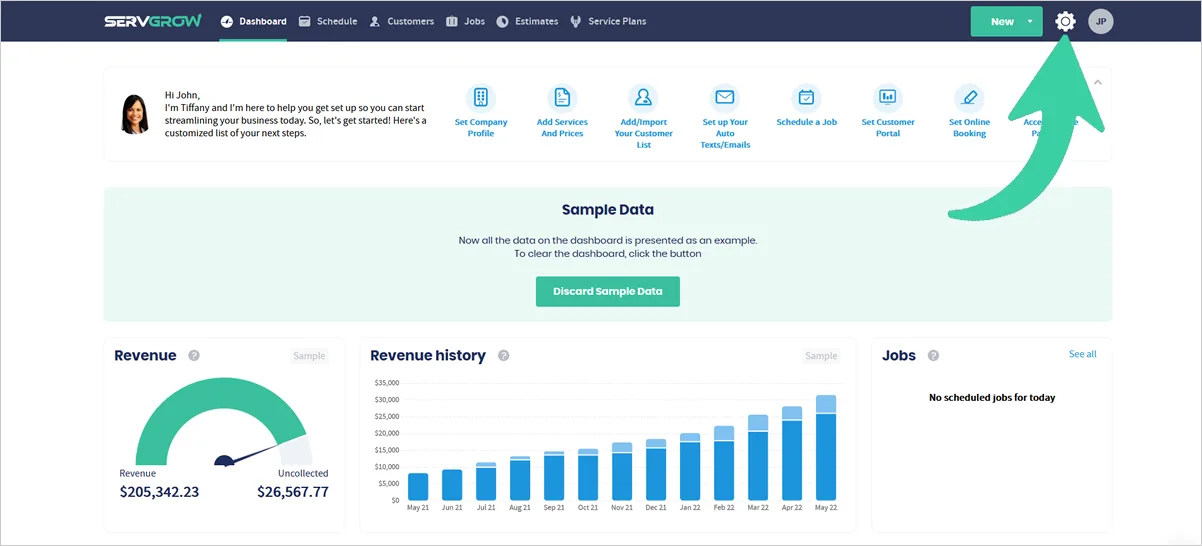
1. Click the cogwheel icon to navigate to your Account Settings.
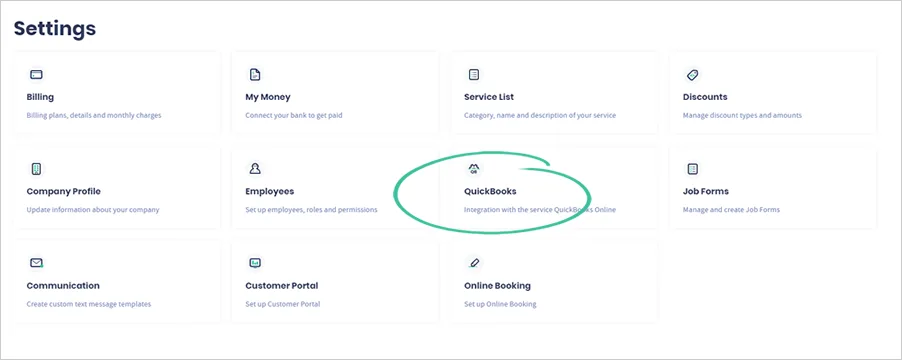
2. Click 'QuickBooks'.
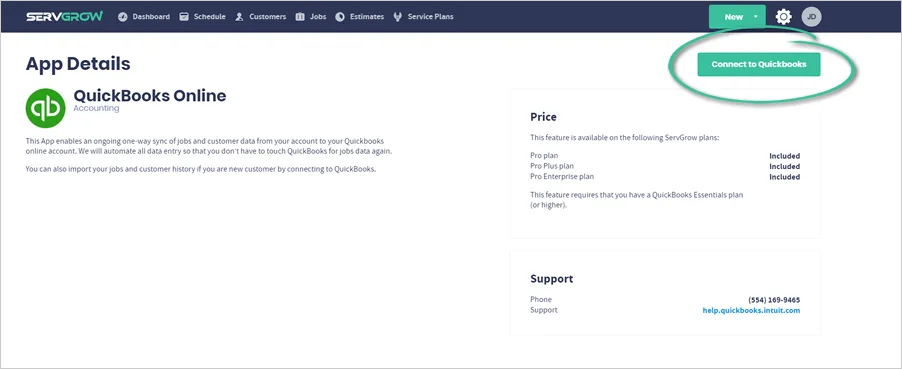
3. Click the 'Connect to QuickBooks' button.
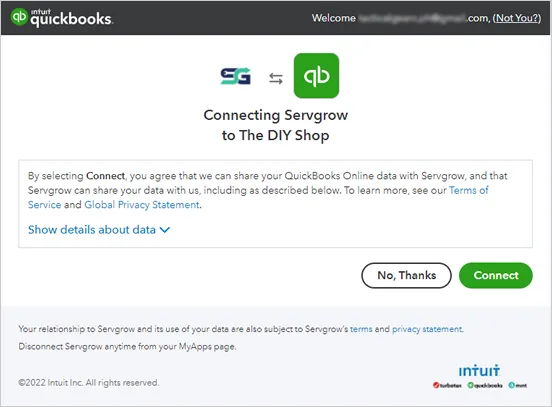
4. Click 'Connect' to proceed.

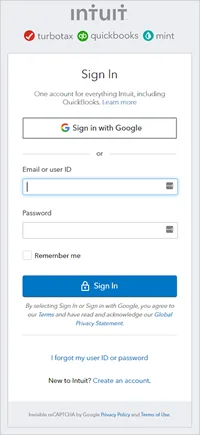
5. Login and verify your QuickBooks account.
6. Click 'Connect'.
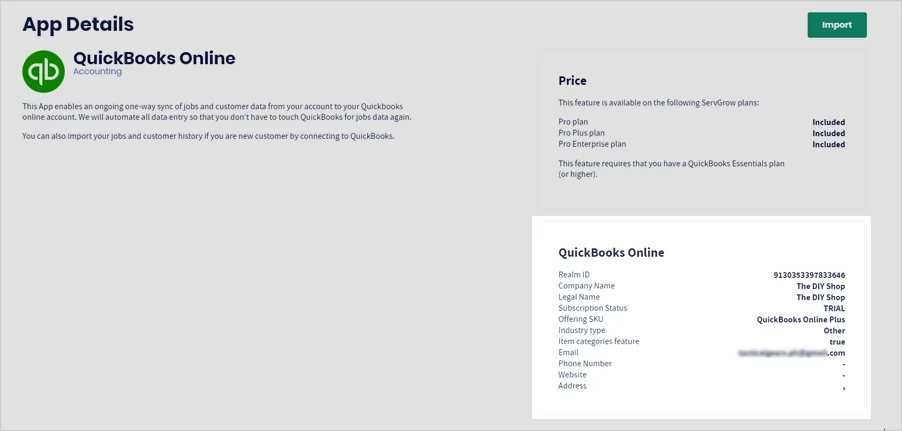
Once you successfully connect QuickBooks to Servgrow, you will see your QuickBooks account details from this panel.
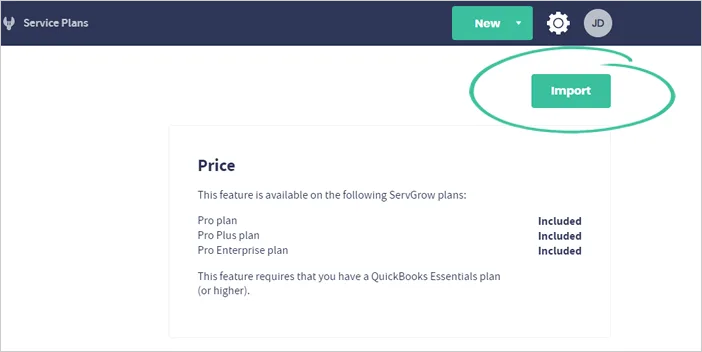
7. Click the 'Import' button.
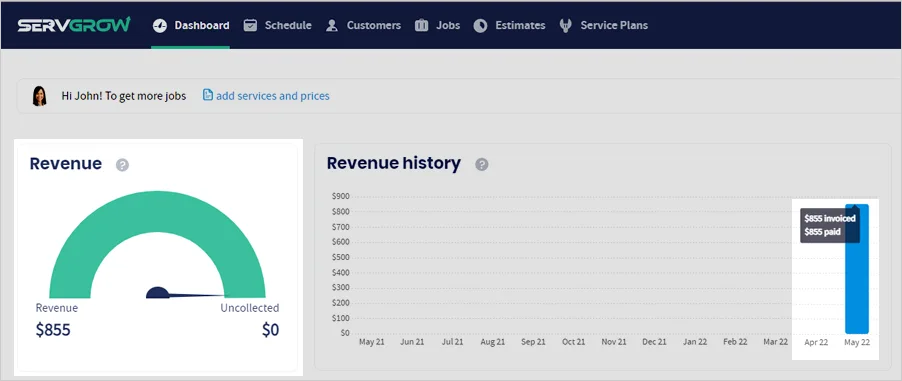
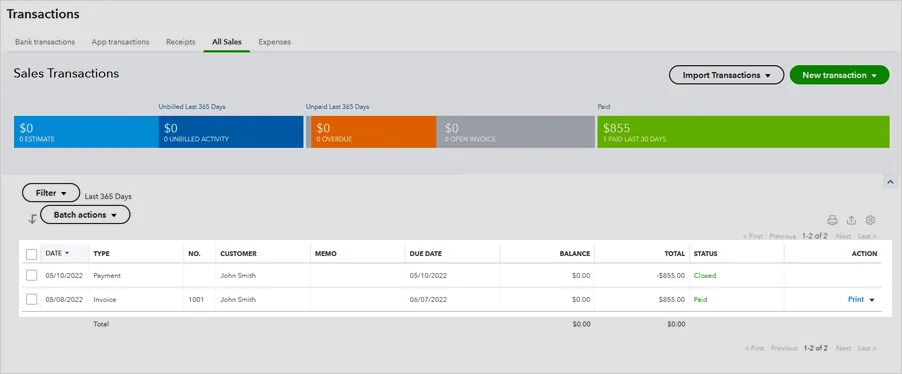
8. Verify if your Main Dashboard reports match with QuickBooks.
Sample data from Servgrow, where revenue collected is $855.00:
An actual data from QuickBooks that displays data from Servgrow. The data includes the customer's name, date of payment, and the amount the customer paid, which in this case should be $850.00 also.
Was this article helpful?