Start Here: Set Up Your Account
Account Settings Dashboard: Everything That Runs Your Business in One Place
Find every setting that controls how your business runs in Servgrow, from customer messages and your schedule to invoices and estimates, grouped into Workflow, Company and Finances, and see where the pages that moved to the left menu went.
Updated November 4, 2026 · 4 min read
How your business runs in Servgrow comes down to a handful of settings: the messages customers receive, how your schedule looks, who on your team sees what, and how you get paid. When those are hard to find, they get set up once and never looked at again, even as your business changes.
Settings puts them all on one page, grouped by what they control. In a couple of clicks you can reword a reminder text, change how the schedule looks or set when estimates expire, so Servgrow keeps working the way your business works today.
Where to find it
Click the gear icon at the top right of any page, or click Settings in the left menu.
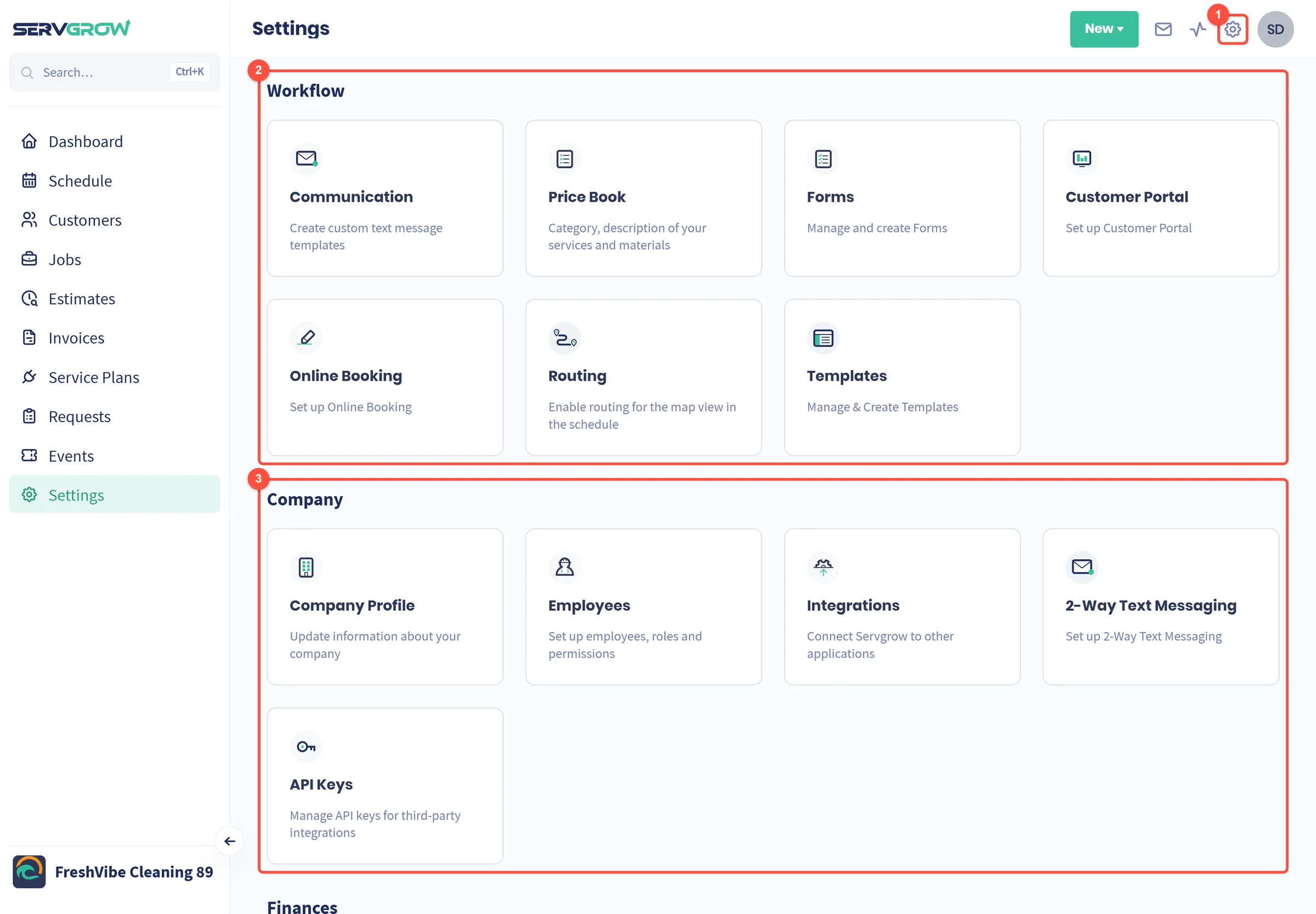
- The gear icon opens Settings from anywhere in Servgrow.
- Workflow: how jobs, messages, your schedule and your team's day work.
- Company: your business details and the apps you connect.
Click any card to open that setting.
Workflow
- Communication: the automatic texts and emails customers receive, appointment reminders and follow-ups, and your own marketing campaigns. See Setting Up Your Email and Text Notifications.
- Message Center: quick responses, the chat bubble for your website, your own notifications and Team Chat history.
- Forms: checklists and forms your team fills in on a job. See Custom Forms.
- Customer Portal: your logo, colors and contact details on the portal where customers see their work with you. See Customer Portal.
- Online Booking: the form customers use to request work from your website. See Online Booking.
- Schedule: how schedule cards and the calendar look, and routing for the map. See Route Optimization.
- Timesheets: turn time tracking on and choose how it works. See Timesheets.
- Sidebar menu: choose which pages each role sees in the left menu. See Sidebar Menu.
- Templates: ready-made jobs and estimates for the work you book most often. See Job & Estimate Templates.
Company
- Company Profile: your business name, logo, phone, address, service area and working hours. See Company Profile.
- Integrations: connect Servgrow to other apps, such as QuickBooks Online. See How to Connect QuickBooks With Servgrow.
- 2-Way Text Messaging: text back and forth with customers from Servgrow. See Setting Up 2-Way Text Messaging.
- API Keys: create keys that let other software connect to your Servgrow account. See Servgrow API and API Keys.
Finances
Scroll down to the last section.
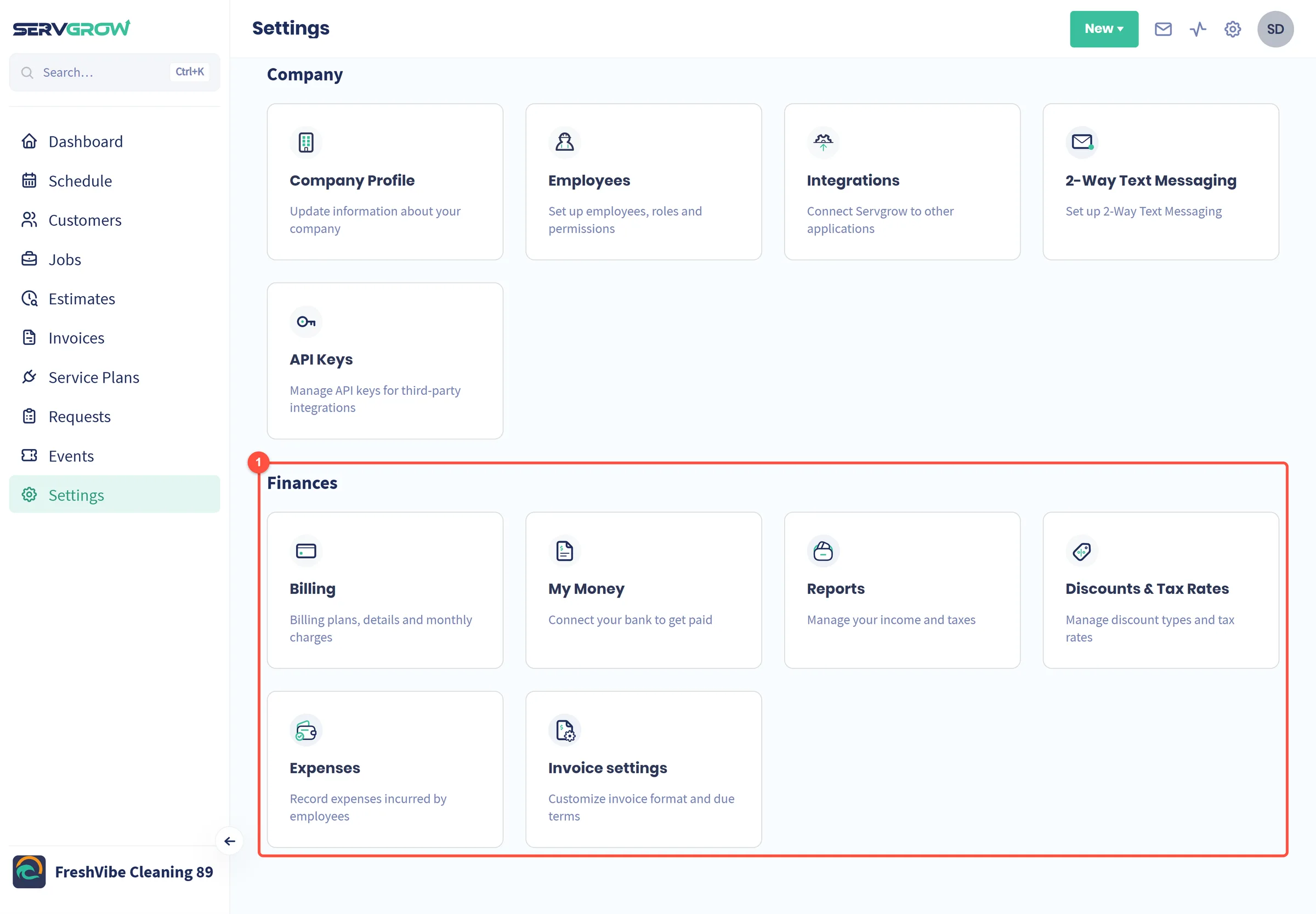
- Finances: what you charge and how invoices and estimates work.
- Billing: your Servgrow plan, billing details and monthly charges.
- Discounts & Tax Rates: the discounts and tax rates you add to jobs, estimates and invoices. See Discounts & Tax Rates.
- Invoice settings: your invoice numbers, format and payment due terms. See Invoice Settings.
- Estimate settings: estimate numbers and when sent estimates expire. See Estimate Settings.
Looking for something that used to be here?
Pages you use every day now sit in the left menu instead of Settings:
- Price Book: your services and materials with their prices. See Price Book.
- Team (formerly Employees): add team members, their schedules and pay rates. See How to Add an Employee.
- My Money: card payments, payouts and disputes.
- Expenses: costs your team records against jobs. See Expense Tracking.
- Reports: your sales, taxes, time off and timesheets. See Sales Reporting.
Who sees which settings
Company Admins see every card. Other roles only see the cards their role allows. A few cards, such as 2-Way Text Messaging, only appear once that feature is turned on for your account.
Tips
- Review your Communication messages every few months. Wording drifts out of date faster than you think.
- New to Servgrow? Follow the step by step setup guide to set things up in the best order.
- Keep Settings to the people who need it. Use roles so only the right people can change prices, payments and permissions.
Related articles
Was this article helpful?