Start Here: Set Up Your Account
Sidebar Menu: Show Each Role Only the Pages It Needs
Give field techs and office staff a shorter, focused left menu: choose which pages each role sees, put them in the order your team works and move rarely used pages into More.
Updated November 4, 2026 · 2 min read
A field tech who opens Servgrow on a job site does not need Reports, Expenses and Call Center in the way. With the sidebar menu settings you choose which pages each role sees, put them in the order your team works, and tuck the rarely used ones into More. Everyone gets a shorter menu that fits their job, and nobody loses access to anything their role can open.
Open the sidebar menu settings
Click the gear icon at the top right, or Settings in the left menu.
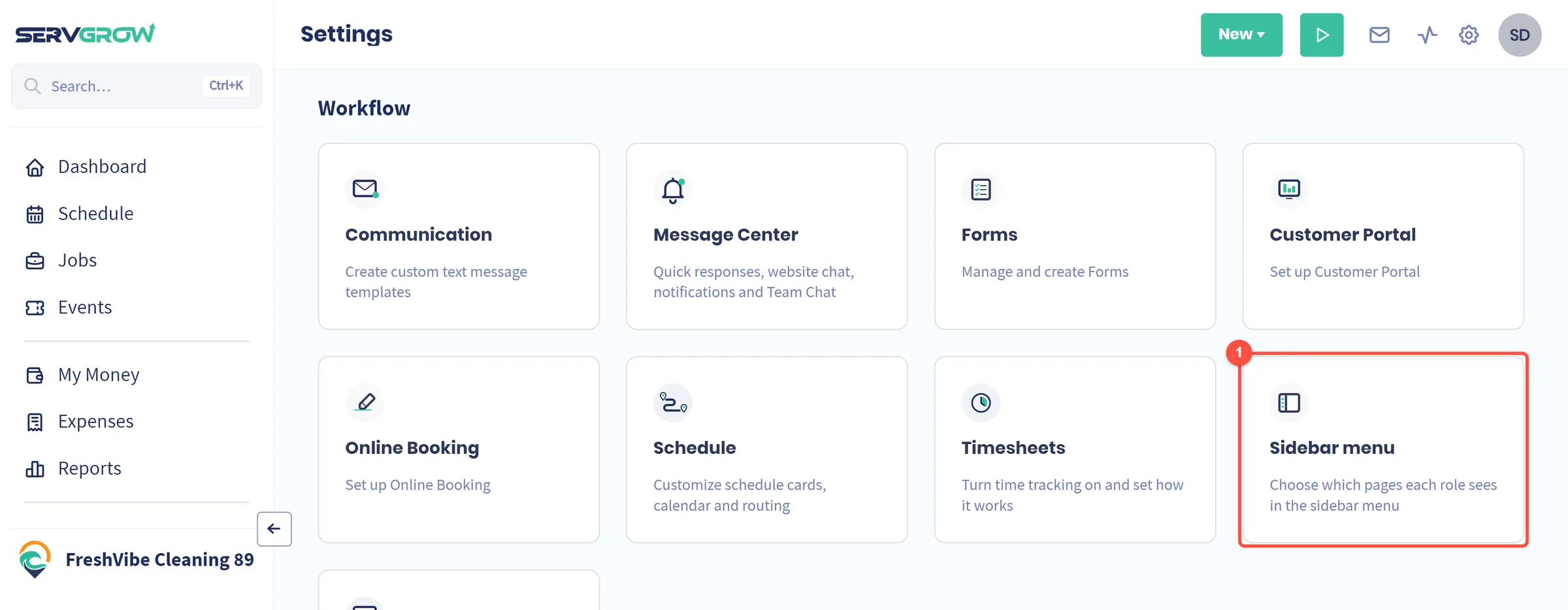
- Click Sidebar menu.
Find your way around
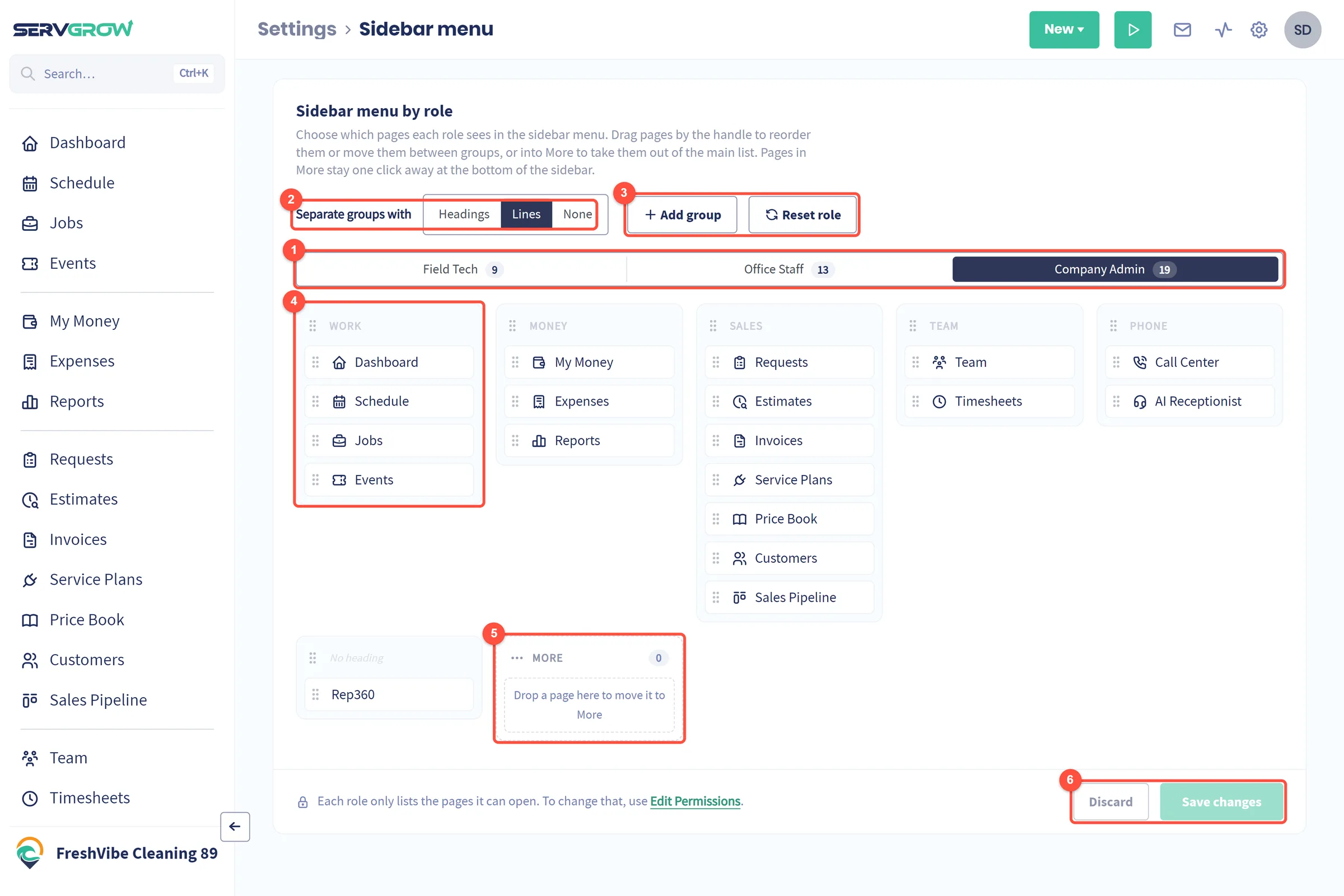
- Roles: pick Field Tech, Office Staff or Company Admin. The number is how many pages that role can open. Each role has its own menu.
- Separate groups with: show each group with its Headings, with Lines between groups, or with None.
- Add group starts a new group. Reset role puts this role's menu back to the standard layout.
- A group, such as Work with Dashboard, Schedule, Jobs and Events. Click the group name to rename it. Drag a page by its handle (the six dots) to change the order or move it to another group, and drag a group by its handle to move the whole group. The bin icon removes a group and keeps its pages.
- More: pages you drop here leave the main list but stay one click away at the bottom of the sidebar.
- Click Save changes when the menu looks right, or Discard to start over.
Give each role a focused menu
Start with the role that has the least time to hunt for things, usually your field techs.
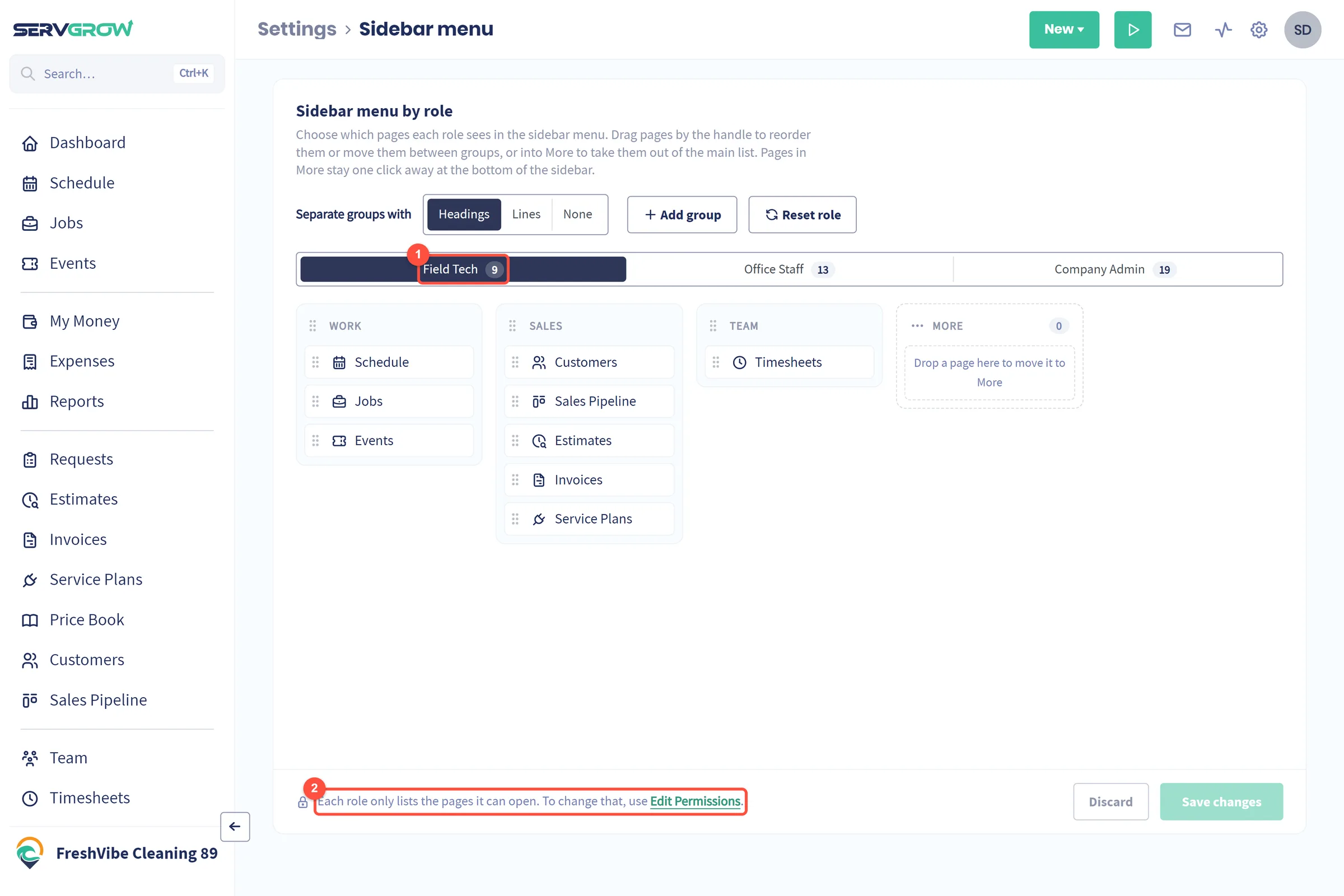
- Click Field Tech. Only the pages a field tech can open are listed, here 9.
- Each role only lists the pages it is allowed to open. To give a role access to a page it does not have, change its permissions with Edit Permissions. The sidebar menu decides where pages show, not who can open them.
Move pages into More
Hover over a page and click the minus button at its right, or drag it into More.
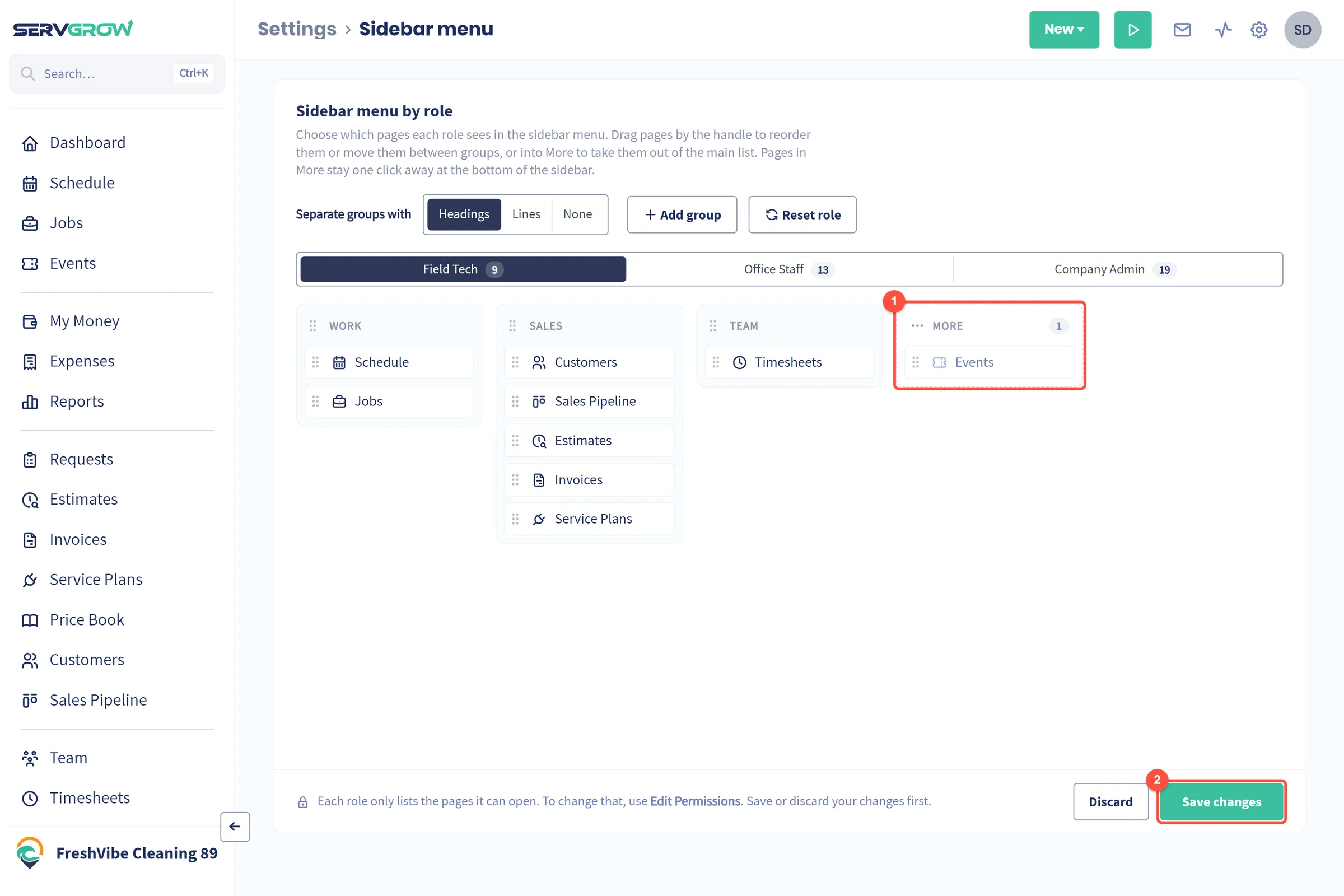
- The page now sits in More. Your team can still open it from the bottom of the sidebar.
- Click Save changes. Everyone with that role sees the new menu.
Tips
- Put the daily pages first. For field techs that is usually Schedule, Jobs and Timesheets. For the office it is Requests, Estimates and Invoices.
- Use More rather than leaving clutter. Pages in More are still one click away, so nothing is lost.
- Company Admins keep everything. Rearranging the admin menu only changes the order and grouping.
- Hiding a page is not a permission. To stop a role opening a page, change the role's permissions.
Related articles
Was this article helpful?