Price Book & Estimates
Sales Pipeline: See Every Lead and Estimate on One Board and Know Who to Call Next
One board for every booking request and open estimate, from a new request to the customer's yes: time chips that show who to call first, Won and Lost totals, lead sources and columns you can rename, recolor and reorder.
Updated November 14, 2026 · 5 min read
A lead left waiting two days goes cold, and an estimate nobody follows up on is work you never get. The Sales Pipeline puts every booking request and every open estimate on one board, in order from the first request to the customer's yes. You see right away who needs a call today, how much work is waiting on an answer, and what you won or lost this month.
Open the Sales Pipeline
Click Sales Pipeline in the left menu.
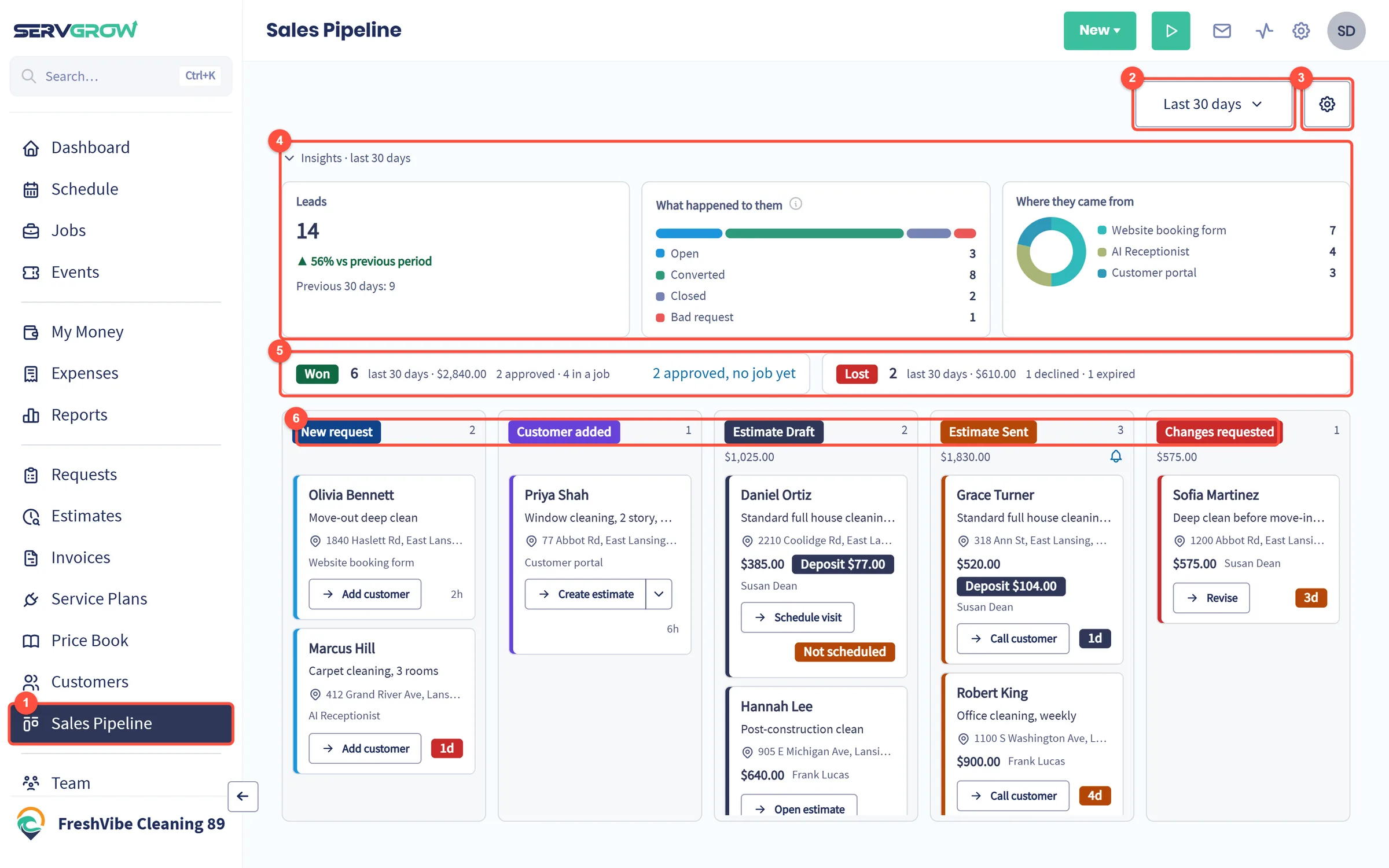
- Sales Pipeline in the left menu.
- The period: Last 7 days, Last 30 days, Last 90 days or a Custom range of up to 400 days. It sets what the insights and the Won and Lost totals count. The columns always show all your open work.
- The gear opens the Sales Pipeline settings (see below).
- Insights for the period. Click Insights to fold them away when you only want the board.
- Leads: how many requests came in from your booking forms, the customer portal and the AI Receptionist, compared with the period before.
- What happened to them: Open (still in Requests), Converted (an estimate or a job was made from it), Closed (moved to past requests without creating work) and Bad request.
- Where they came from: which booking form, the AI Receptionist or the customer portal.
- Won and Lost for the period, with their totals. Won counts estimates the customer approved and estimates that became a job. Lost counts declined and expired estimates. approved, no job yet opens the approved estimates that still need a job.
- The columns, from a new request to an estimate waiting on changes. Each shows how many cards it holds, and the estimate columns show their total value.
Turn a new request into an estimate
Booking requests land in the first two columns.
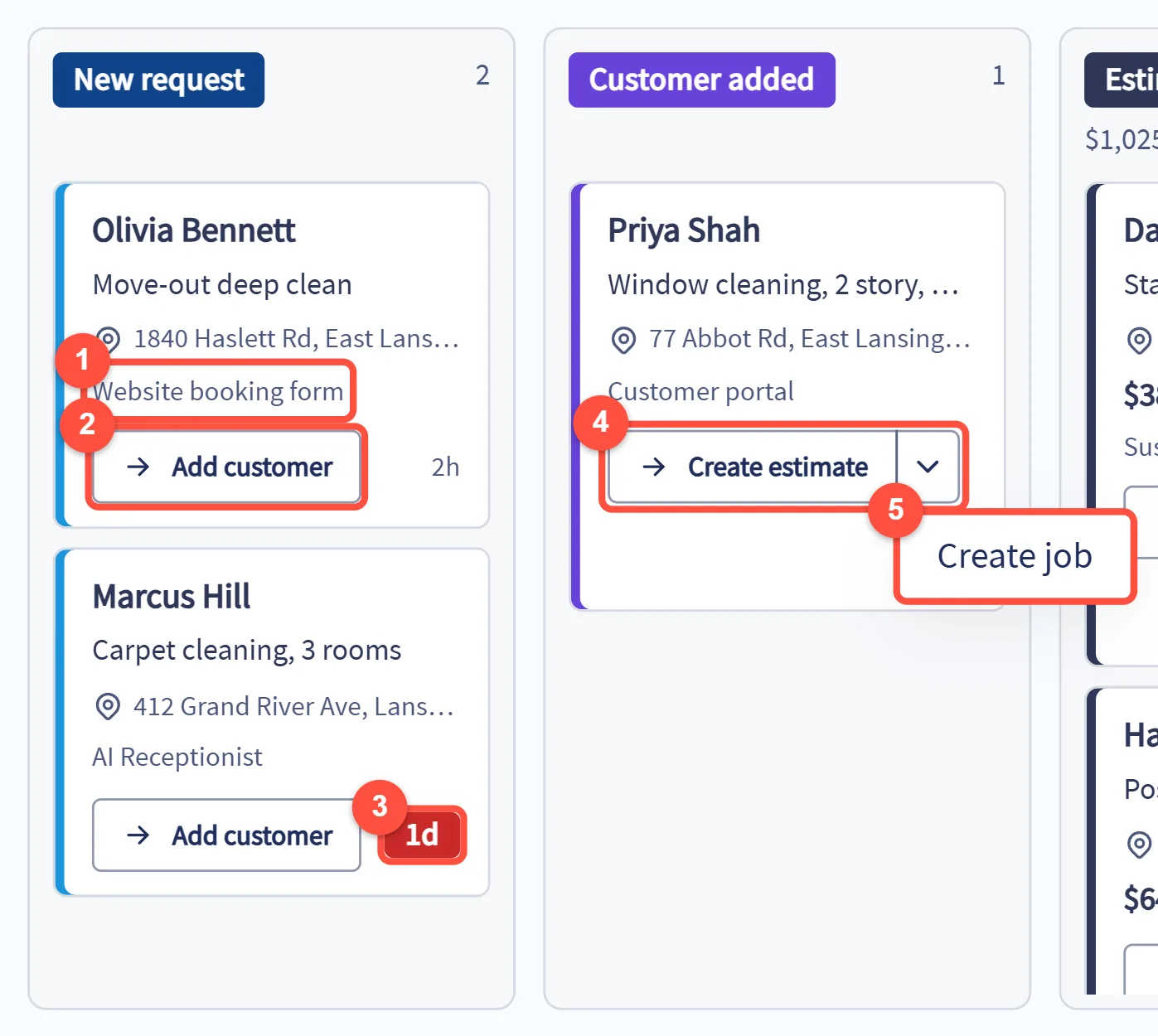
- Where the request came from: a booking form, the AI Receptionist or the customer portal.
- New request: the request is from someone who is not a customer yet. Add customer creates the customer from the request, and the card moves to Customer added.
- The time chip shows how long the card has waited. It turns orange, then red, when a card waits too long. You set those times in the settings.
- Customer added: the customer is in Servgrow and is waiting for a price. Create estimate starts an estimate from the request.
- The arrow next to it has Create job, for work you can book straight away without an estimate.
Click anywhere else on a card to open the request. When a card has a phone number, the phone icon on it starts a call.
Follow up on your estimates
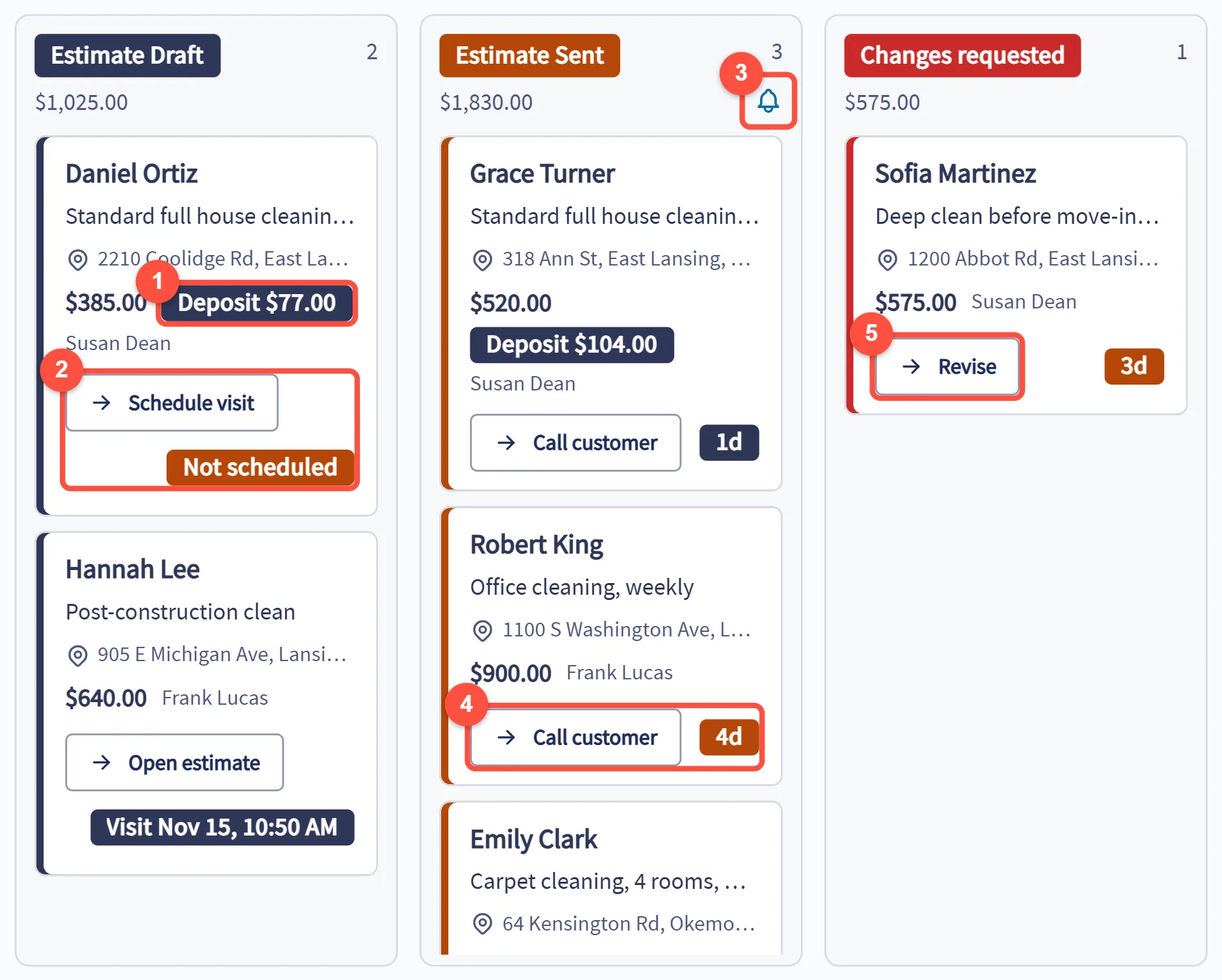
- The estimate amount and the deposit the customer pays to approve it. Once it is paid, the chip says Deposit paid.
- Estimate Draft: estimates you have not sent yet. The button is the next step: Schedule visit when the estimate visit has no date yet (marked Not scheduled), or Open estimate to finish it and send it.
- The bell shows whether customers get an automatic reminder about estimates they have not answered. Hover it to see when the reminder goes out. Click it to change the reminder under Settings, Communication, Reminders. If it says No reminder, click it to set one up. See Appointment Reminders and Follow-ups.
- Estimate Sent: estimates waiting on the customer. Call customer is one click away, and the chip shows how long ago you sent it. It turns orange after 3 days and red after 7, so you know who to chase first.
- Changes requested: the customer asked for changes. Revise opens the estimate so you can update it and send it again.
Mark an estimate won or lost
When a customer approves an estimate from the link you sent or in the customer portal, it counts as won by itself. When they tell you on the phone, drag the card onto Won or Lost. Servgrow asks you to confirm, then marks the estimate approved or declined.
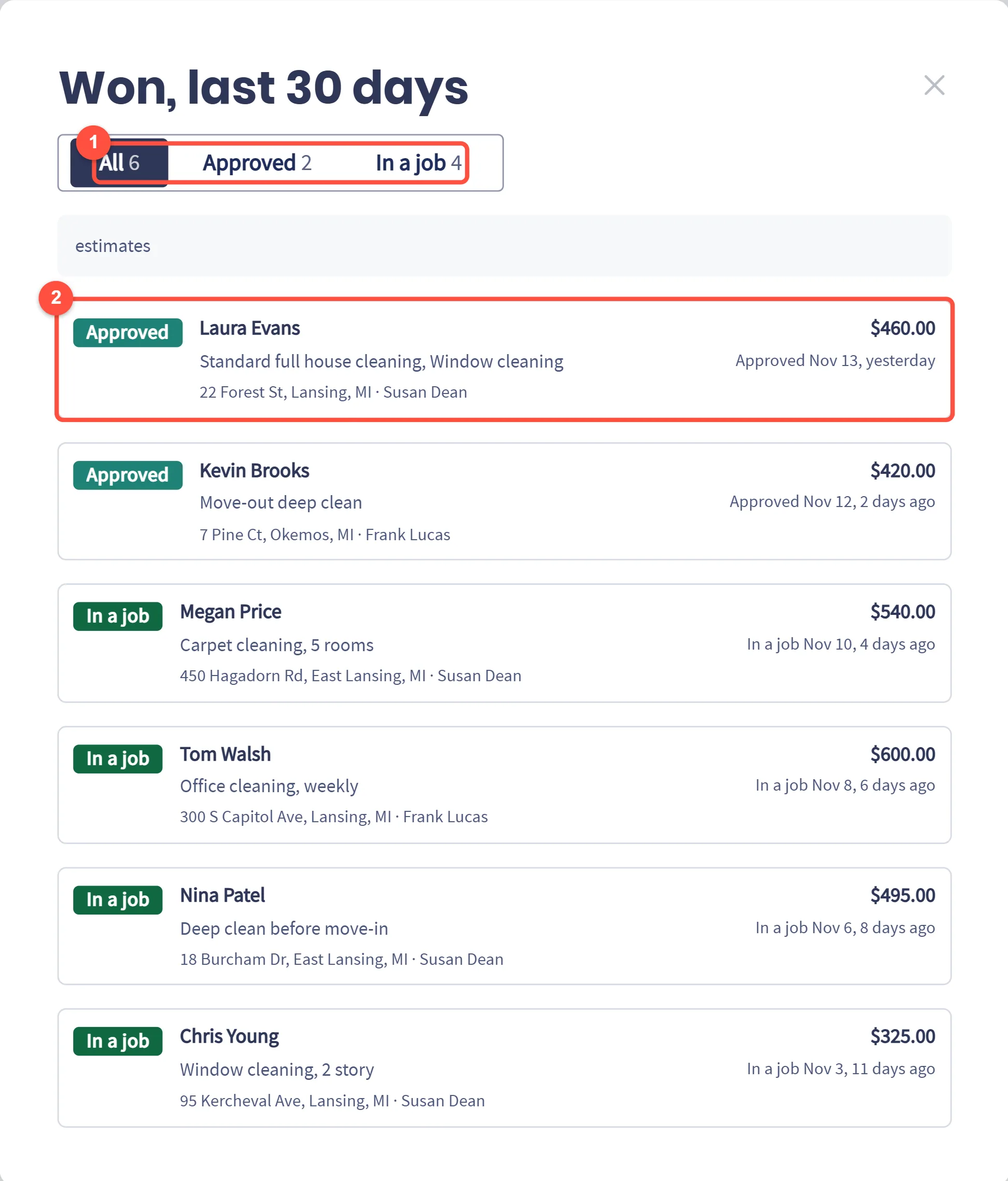
- Click Won or Lost to see the estimates behind the number. Filter Won by Approved or In a job, and Lost by Declined or Expired.
- Each row shows the customer, the amount, the services, when it was won or lost and who is assigned. Click a row to open the estimate.
Make the board fit how you sell
Click the gear above the board.
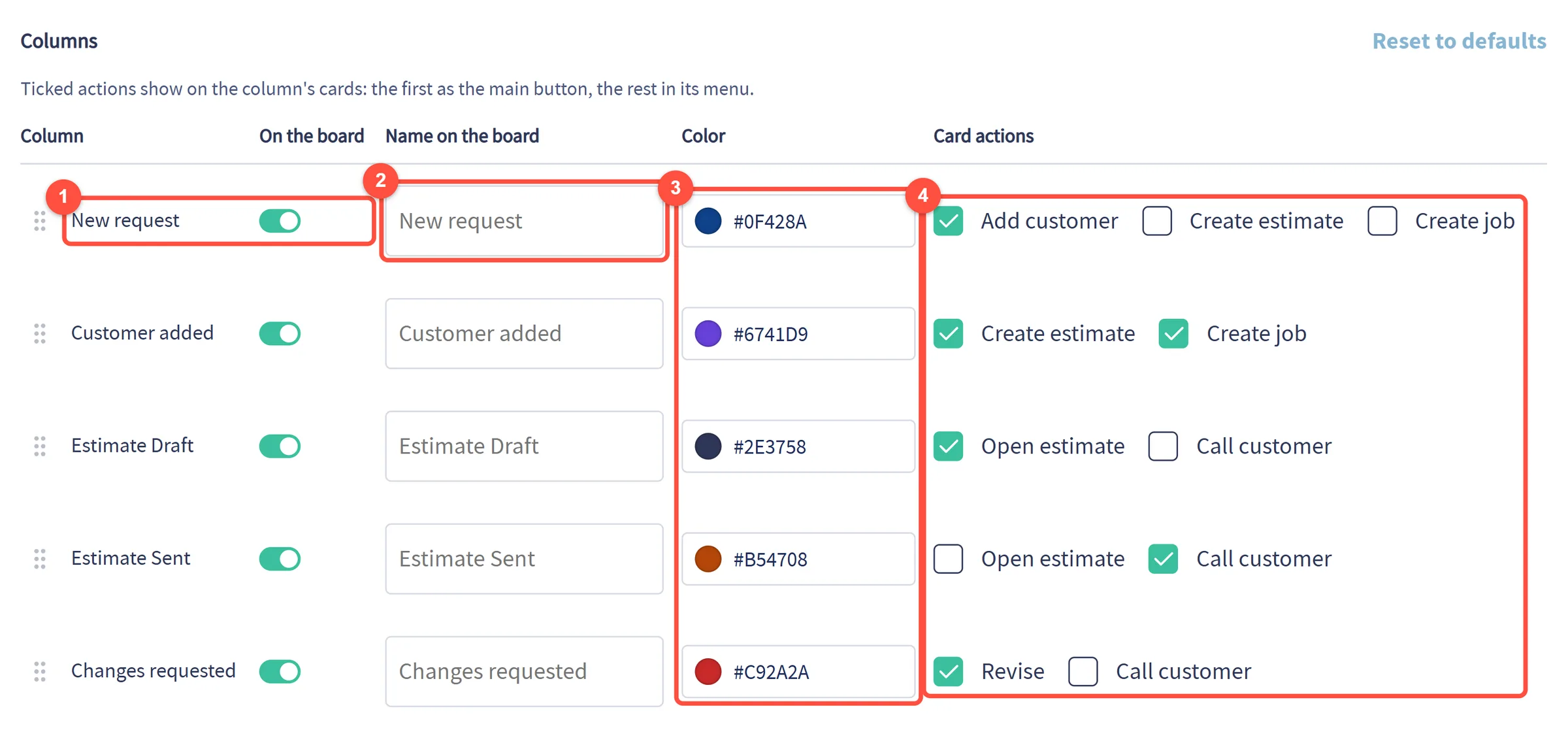
- On the board: hide a column you do not use. Drag the handle on the left of a row to change the order of the columns.
- Name on the board: rename a column in your own words, such as "Quote sent".
- Color: the column's color on the board.
- Card actions: the buttons on that column's cards. The first one you tick is the main button, and the rest go in its menu.
Time marks decide how long a card can wait in each column before its time chip changes color.
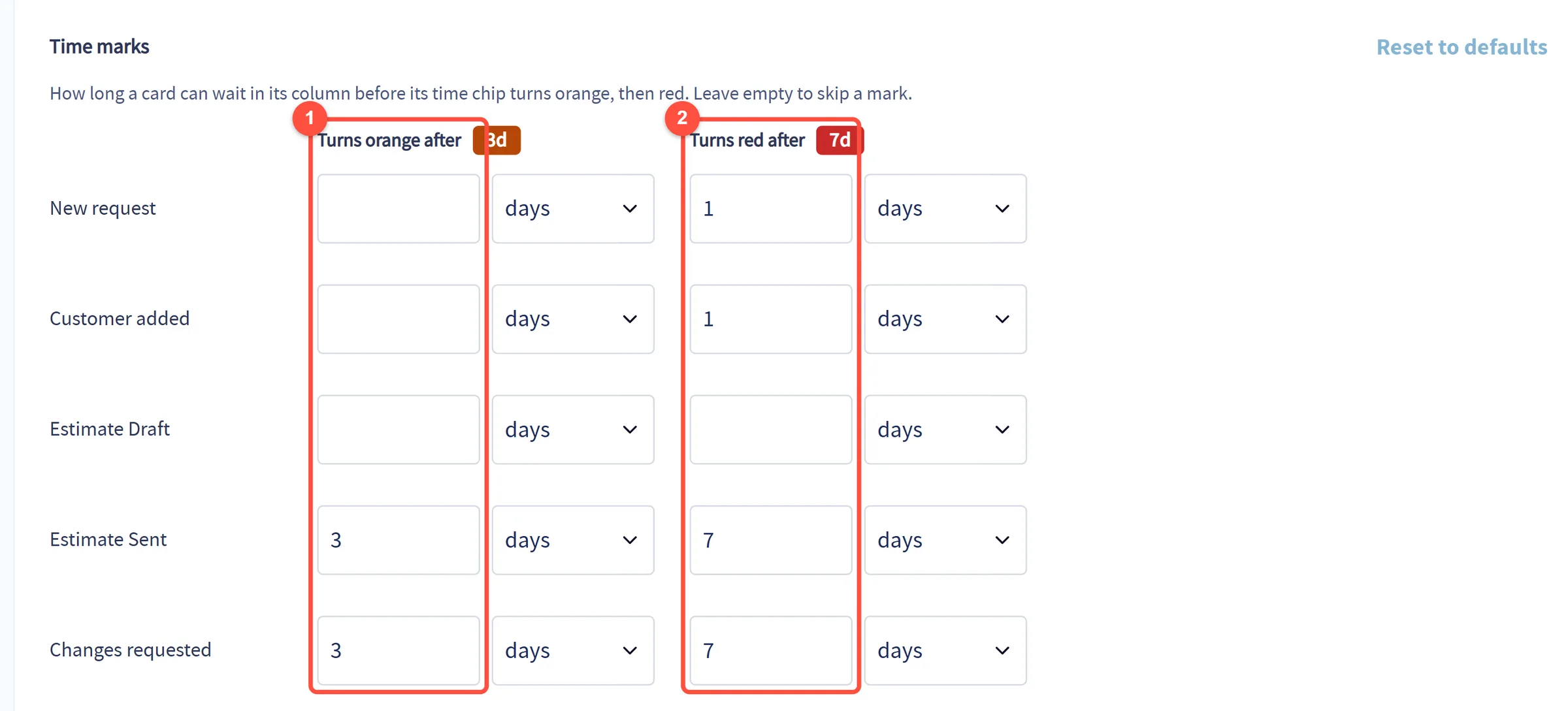
- Turns orange after: the wait that gets a card noticed.
- Turns red after: the wait that means call today. Pick hours or days, and leave a box empty to skip that mark for a column.
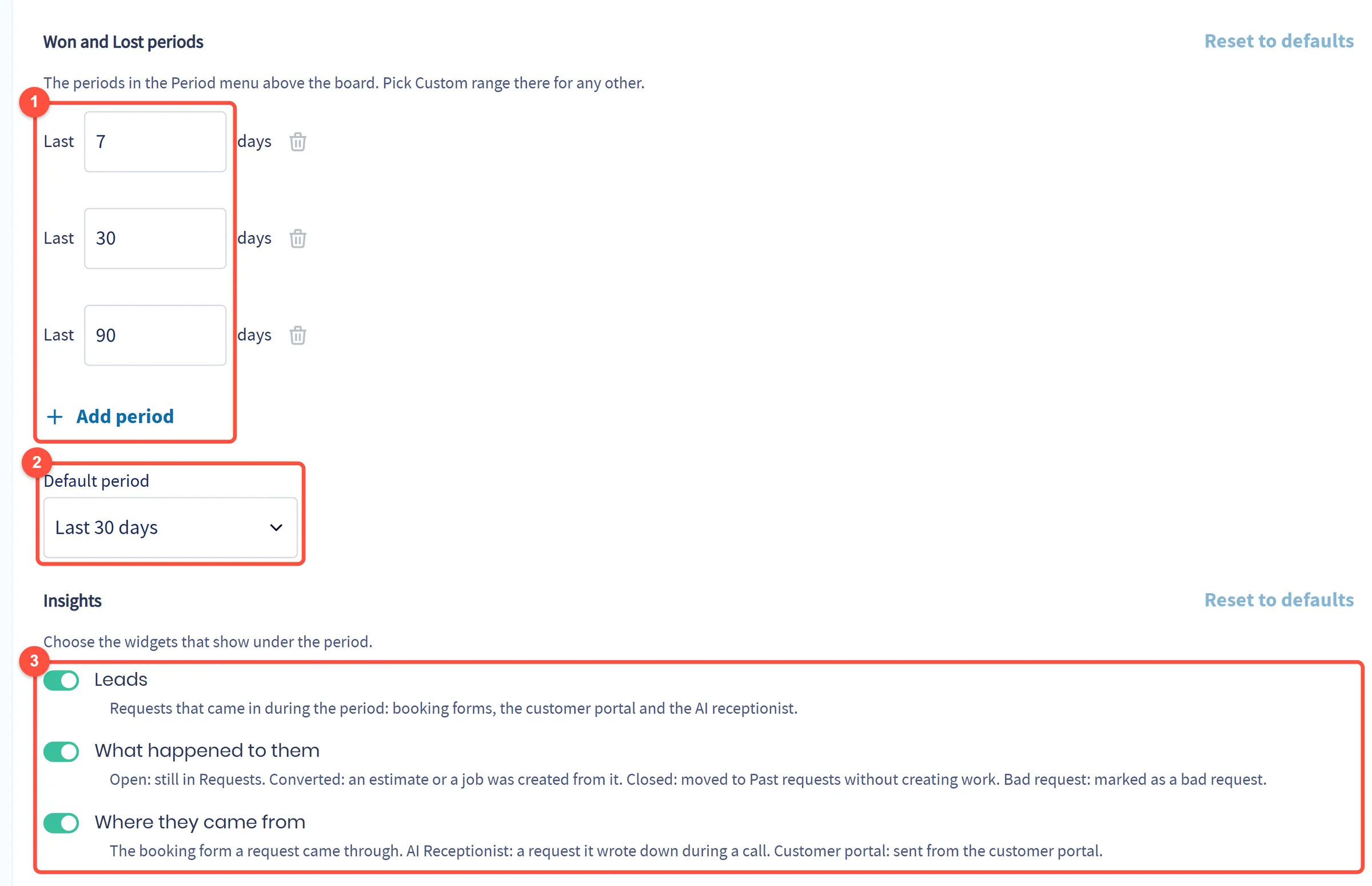
- Won and Lost periods: the choices in the period menu above the board. Change the days, remove one with the bin, or click Add period.
- Default period: the period the board opens with.
- Insights: turn each insight on or off.
When you change anything, an Unsaved changes bar appears. Click Save to keep your changes, or Cancel to undo them. Each section also has Reset to defaults to go back to how Servgrow set it up.
Tips
- Start the day on the board. Red chips are the leads and estimates to call first.
- Clear "approved, no job yet" every week. An approved estimate only earns money once the job is on the schedule.
- Watch where your leads come from. If most come from one booking form, put that link where more people will see it.
- Keep deposits on. A customer who pays a deposit to approve is far less likely to cancel.
Related articles
Was this article helpful?