Reports & Integrations
Job Costing: See What Every Job Really Costs and What You Keep
See labor, line item costs, expenses and profit on every job, set each employee's hourly cost with a dated rate history, and compare profit across all your jobs in the Sales report.
Updated November 14, 2026 · 4 min read
A busy month can still lose money. When a two hour job takes the crew five, or the supplies run over, the invoice looks the same but the profit is gone, and you only find out when the bank balance does not add up. Job Costing shows what every job really cost you, including your team's time, and what you kept. You see it on the job while the work is fresh, and across all your jobs in the Sales report.
How Servgrow works out the profit
For every job, Servgrow takes the price and subtracts three costs:
- Line item cost: the cost you entered for each service and material, usually from your Price Book.
- Labor: the time your team tracked on the job, at each person's hourly cost.
- Expenses: anything you or your team spent on the job, such as supplies bought on the way.
Labor needs Timesheets turned on, so the time on each job is tracked, and an hourly cost for each person.
Turn on labor costing
Click Settings, then Timesheets.
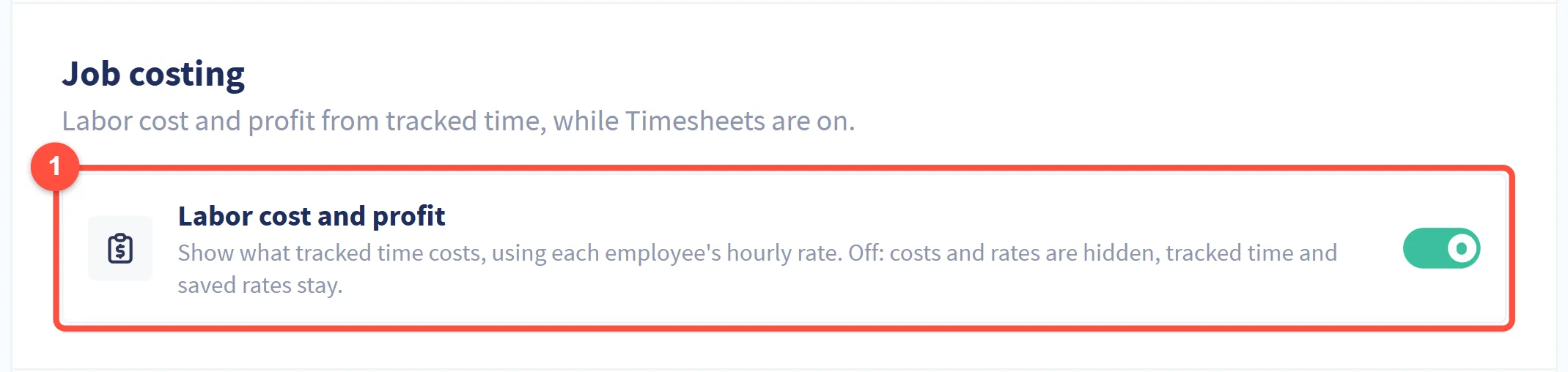
- Labor cost and profit: shows what tracked time costs, using each employee's hourly rate. Turn it off and costs and rates are hidden everywhere, while the tracked time and the rates you saved stay.
Set what an hour of each person costs
Click Team in the left menu, click the employee's name, then the Rates tab.
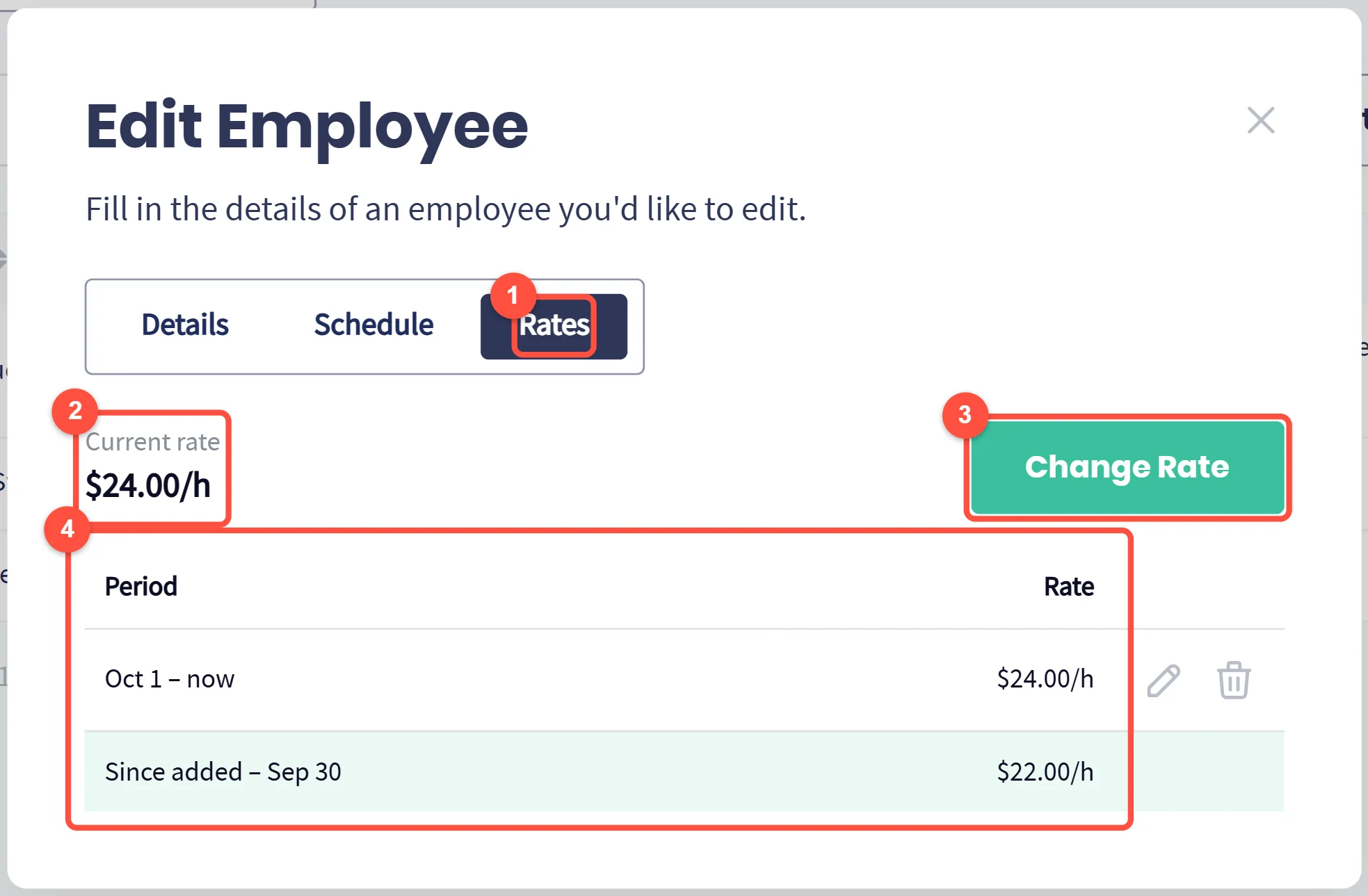
- The Rates tab.
- Current rate: what an hour of this person's time costs you today.
- Change Rate: enter the new labor cost per hour and the date it starts. Use their wage plus payroll taxes and benefits, so the cost is real.
- The rate history. Each hour is costed at the rate that applied on the day it was worked, so a raise does not change the cost of work done before it.
Rates are private. Only roles allowed to View & Edit Rates can see them. See Changing Employee Permissions and Roles.
See the profit on a job
Open any job. The Profitability section sits at the top of the job, under the visit steps. Click it to open or fold it; Servgrow remembers how you left it.
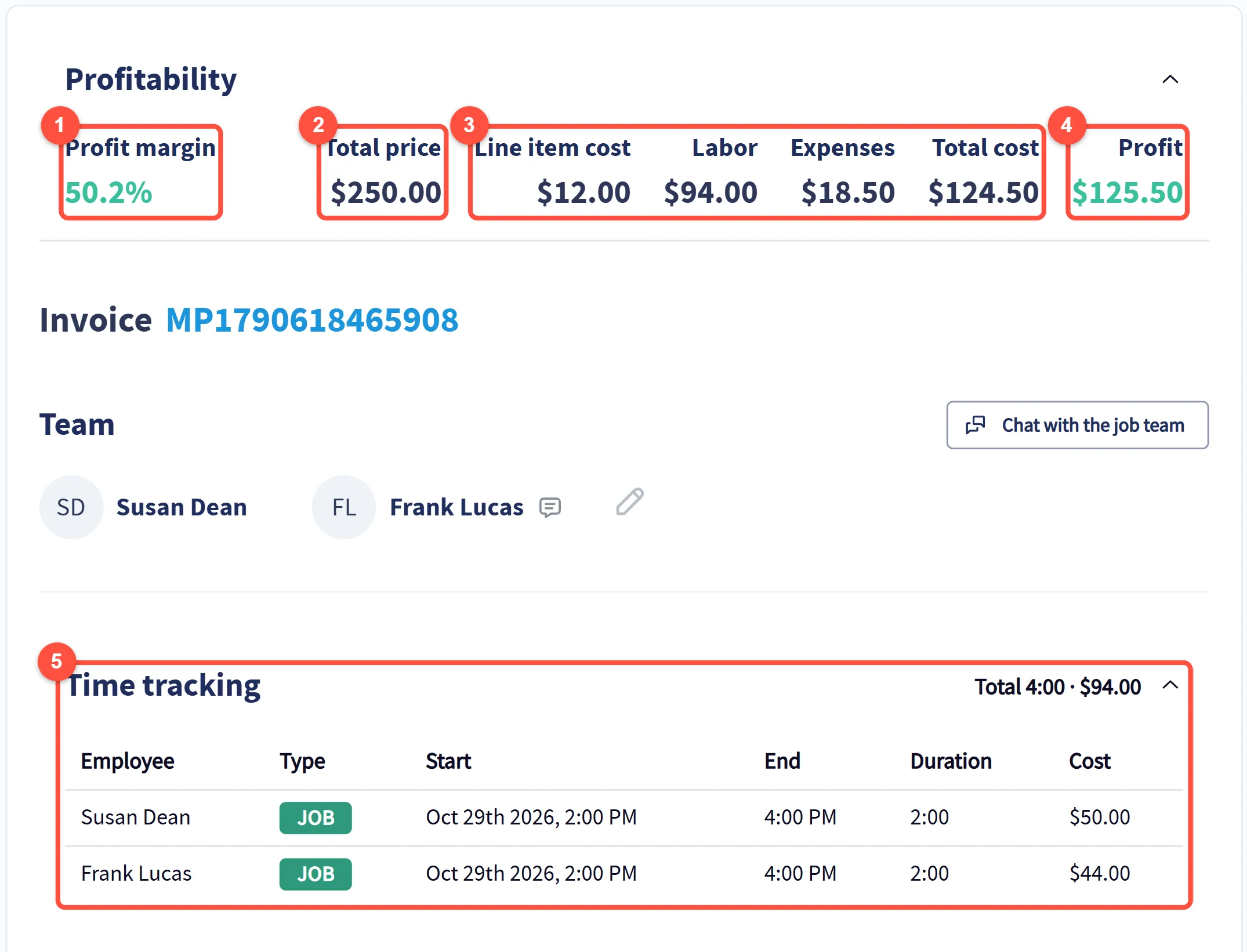
- Profit margin: the share of the price you keep.
- Total price: what the job is billed for.
- The costs: Line item cost, Labor, Expenses, and Total cost for all three together.
- Profit: the price minus the total cost.
- Time tracking: who worked on the job, when, for how long and what that time cost, with the total at the top. It fills in as your team taps On my way, Start and Finish, or starts a timer on the job.
If someone tracked time before they had a rate, you see "Labor: rate not set for some time" under the numbers. Add their rate with the right start date and the labor cost fills in.
Add what you spent on the job
Scroll to Expenses at the bottom of the job.
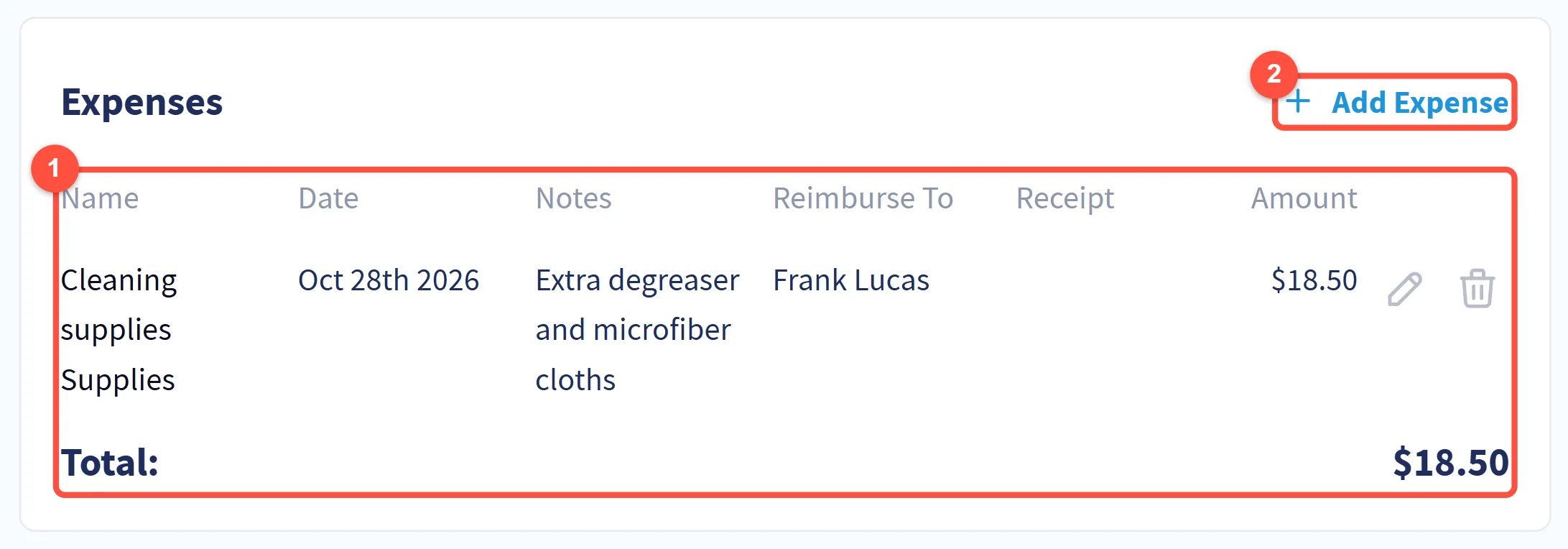
- Each expense with its date, notes, who to pay back and the receipt. The total goes straight into Profitability.
- Add Expense: record a new cost, such as supplies, a dump fee or parking. See Expense Tracking.
Compare profit across all your jobs
Click Reports in the left menu and open the Sales report. With labor costing on, Display Options adds four columns: Time Tracked, Labor Cost, Total Cost and Profit %, next to Expenses and Profit. Sort or filter by service, employee or customer to see which work earns the most. See Sales Reporting.
Tips
- Put a cost on every Price Book item. Without it, materials look free and the profit looks better than it is.
- Give every raise its date. Change the rate from the day it starts, never by editing the old one, so past jobs keep their real cost.
- Check low margins right after a job finishes. The reason is easiest to find while the crew still remembers the day.
- Price from what you learn. If one type of job keeps running long, it is a sign to raise its price or change how you quote it.
Related articles
See the feature
Was this article helpful?