Communication & Marketing
Website Chat: Turn Website Visitors Into Booked Jobs
Put a chat bubble on your website, choose what visitors fill in, add the code to any site builder, and answer every chat from the Message Center, where chats link to your customers and you can book the job.
Updated November 28, 2026 · 5 min read
Plenty of people browsing your website won't call and won't fill in a form, but they will type a quick question. Website Chat puts a chat bubble on every page of your site so they can ask right away. Every chat lands in your Message Center next to your texts, where you can answer, see who the visitor is and book the job before they move on to the next company.
Website Chat sends each visitor a code by text to confirm their mobile number, so set up 2-Way Text first. Don't want to ask for a mobile number? Set Mobile number to Hidden (see below) and you can turn chat on without 2-Way Text.
Turn on the chat bubble
Click Settings, then Message Center, and open Website chat. You can also click the gear next to Messages in the Message Center.
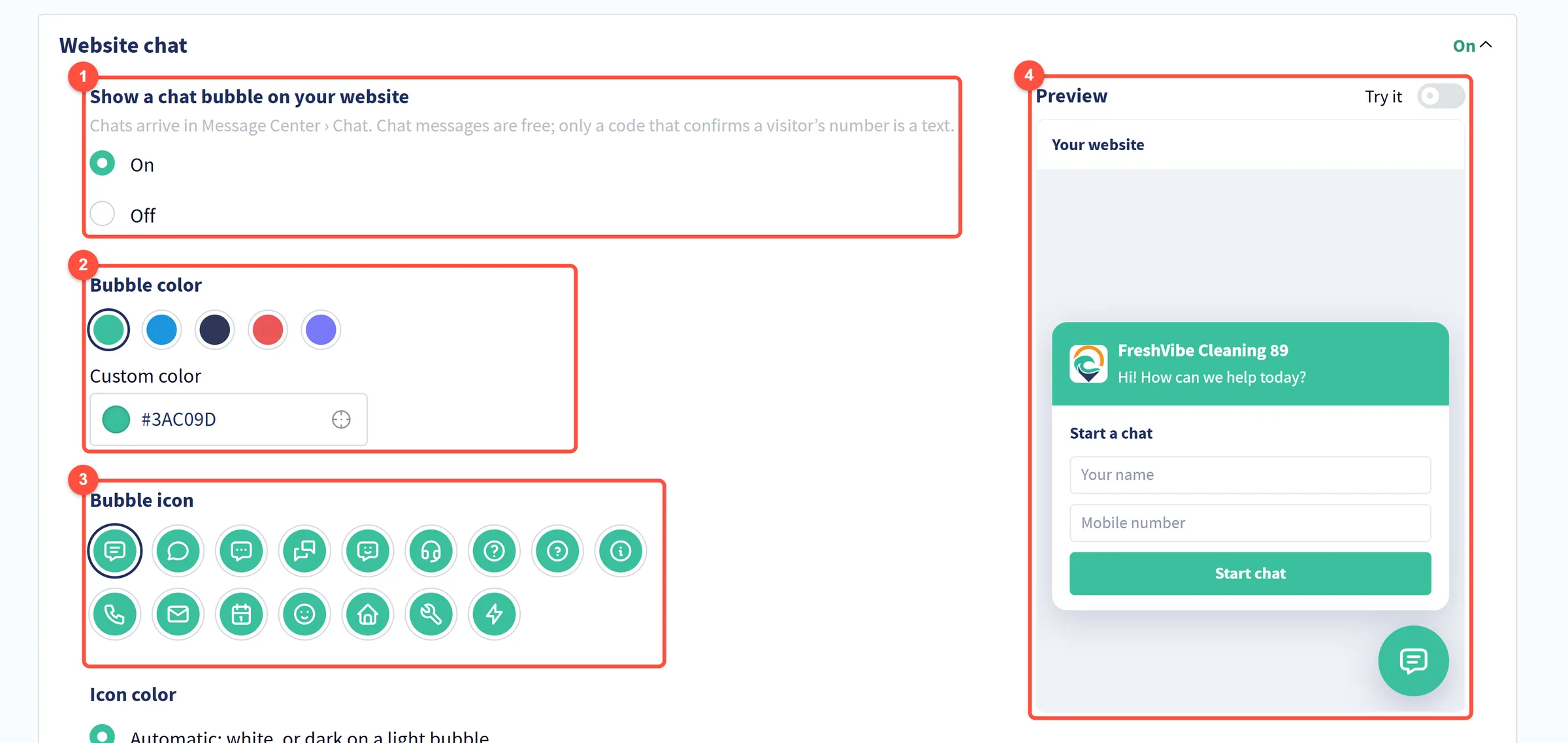
- Show a chat bubble on your website: pick On.
- Bubble color: pick one of the five colors, or type your own brand color under Custom color.
- Bubble icon: pick the icon on the bubble. Under Icon color, Automatic uses white, or dark on a light bubble; pick Custom to choose it yourself.
- The Preview shows the bubble and the chat window the way visitors will see them, and it changes as you go.
Choose what visitors see and fill in
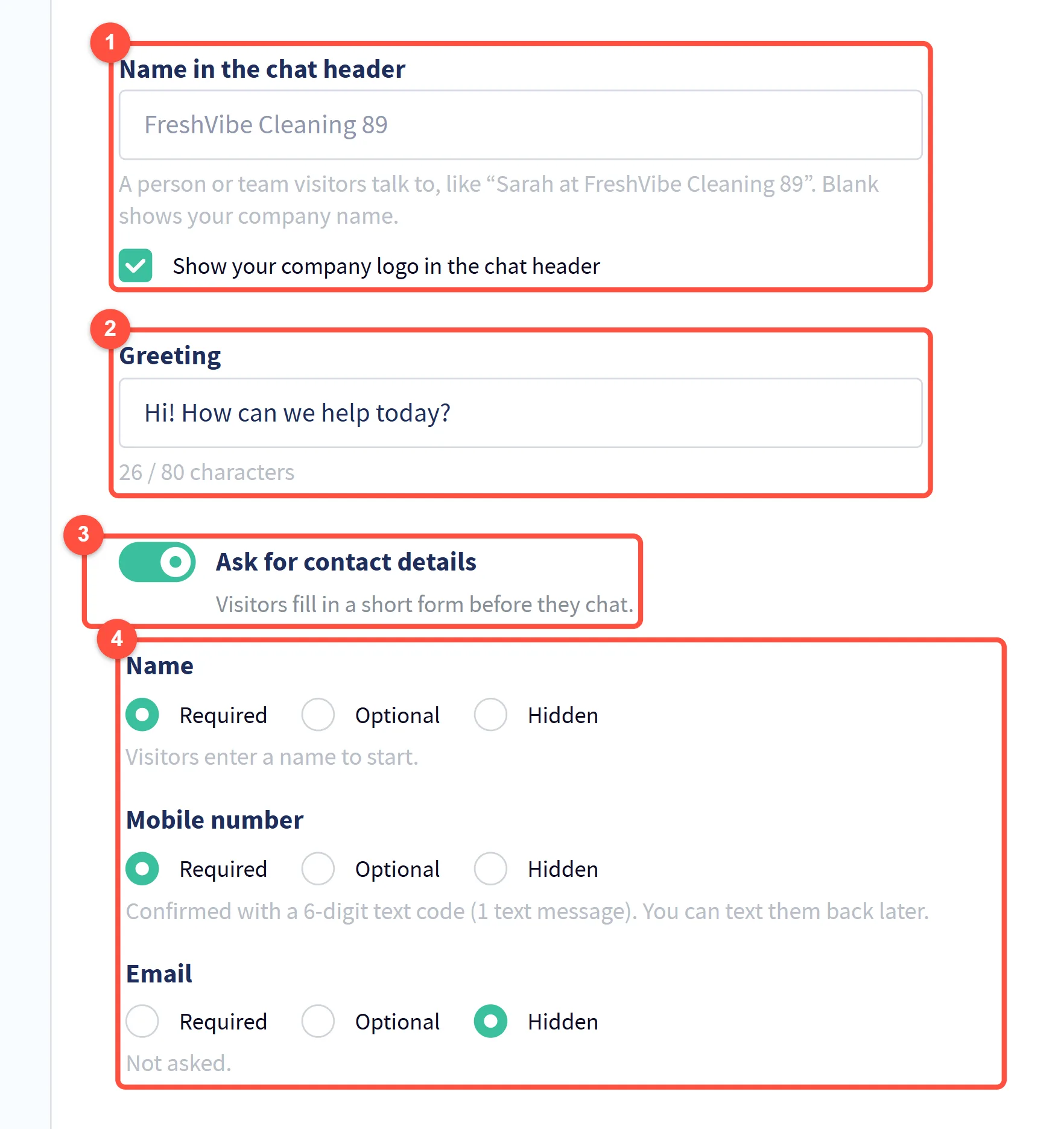
- Name in the chat header: the person or team visitors talk to, like "Sarah at" your company name. Leave it blank to show your company name. Tick Show your company logo in the chat header to show your logo next to it.
- Greeting: the first line visitors read, up to 80 characters.
- Ask for contact details: visitors fill in a short form before they chat. Switch it off and visitors start typing right away; their chats show as "Visitor" until you link them to a customer.
- For Name, Mobile number and Email, pick Required, Optional or Hidden. A mobile number is confirmed with a 6-digit code by text, so you know it's real and you can text the visitor back later.
Click Save at the bottom of the section.
Chat messages don't use your text messages. Only the code that confirms a visitor's mobile number goes out as a text.
Add the chat to your website
Once chat is on and saved, your code shows under Add it to your website.
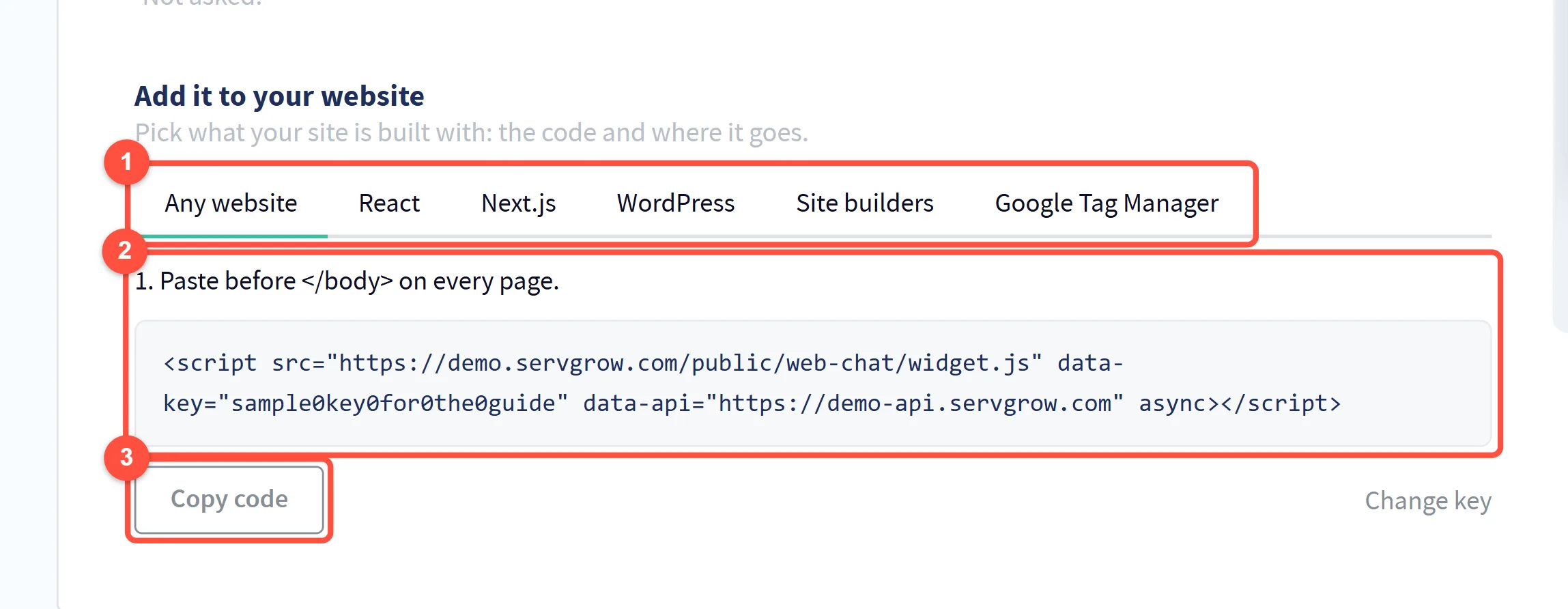
- Pick what your site is built with: Any website, React, Next.js, WordPress, Site builders or Google Tag Manager. Each tab shows the code and where it goes.
- For Any website, paste the code just before
</body>on every page. - Copy code copies it, ready to paste.
On WordPress, install the WPCode plugin (Insert Headers and Footers), go to Code Snippets, then Header & Footer, paste the code into Footer and save. With Google Tag Manager, add a new Custom HTML tag with the code, set the trigger to All Pages, then submit and publish.
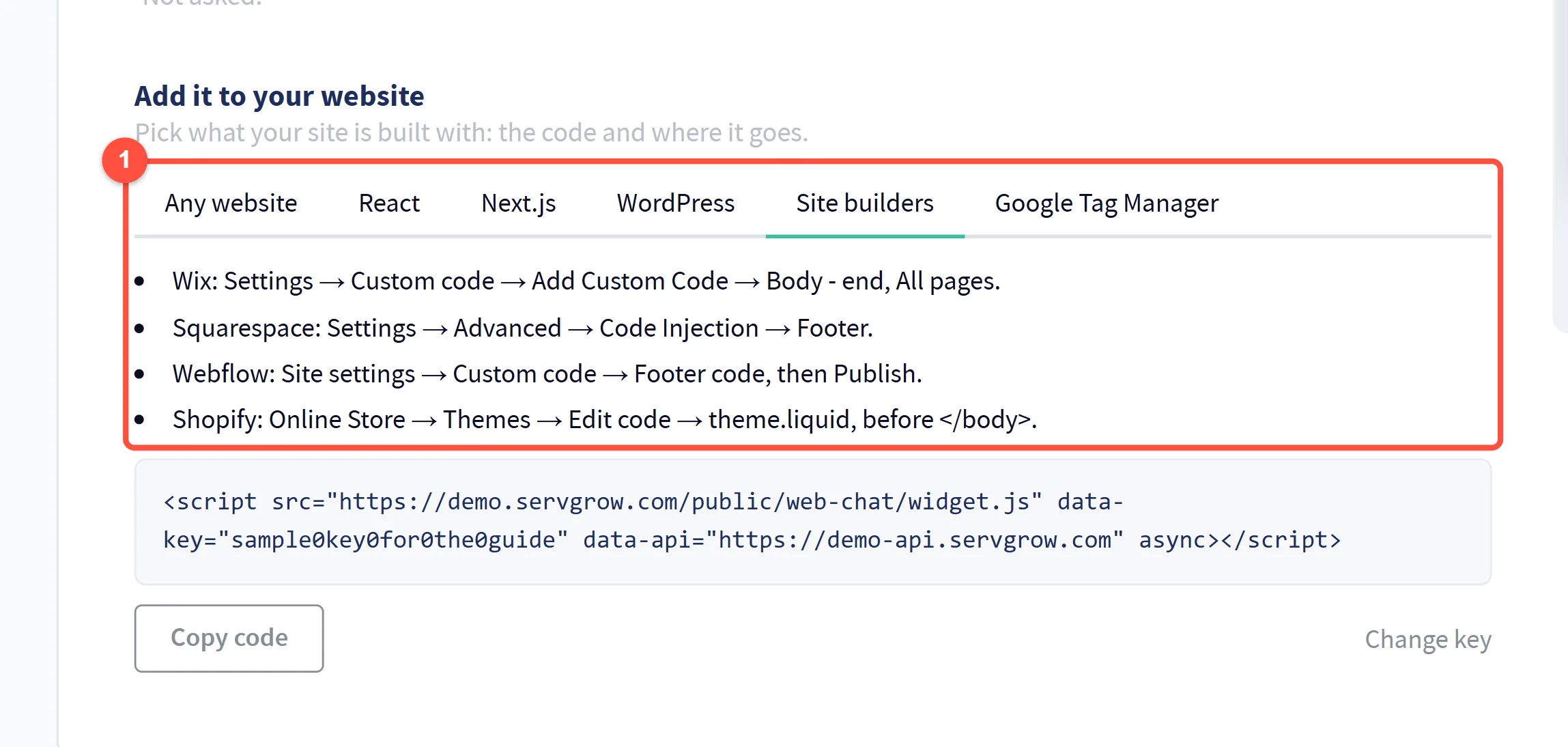
- Site builders shows where the code goes in Wix, Squarespace, Webflow and Shopify.
Change key gives you a new code. The code already on your website stops working until you paste in the new one, so only use it if you need to cut off the old code.
Answer chats in the Message Center
Click the envelope icon at the top right of any page, then the Chat tab.
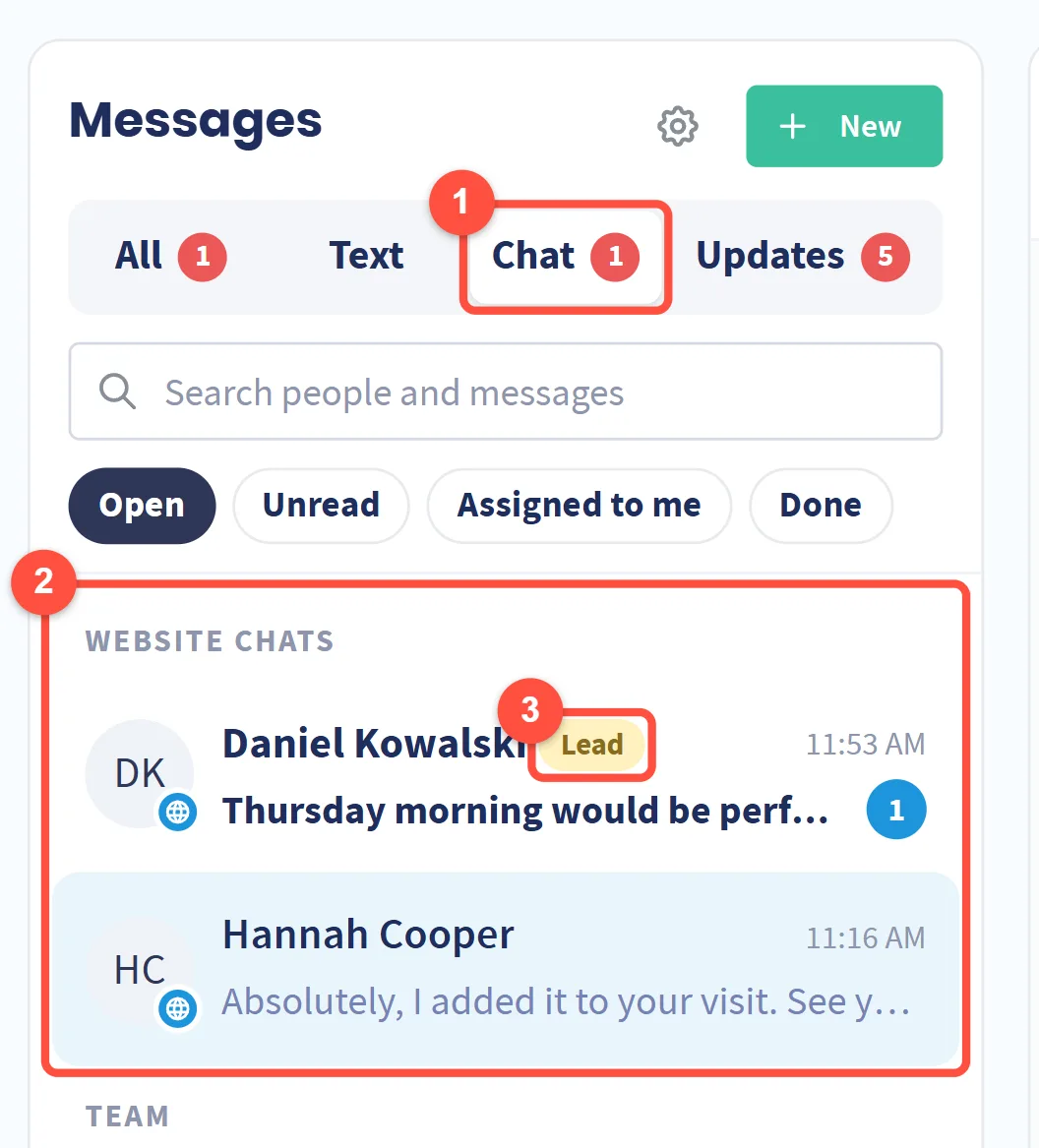
- The Chat tab holds your website chats and your team chats. The red number counts unread chats. Open, Unread, Assigned to me and Done filter the list.
- Website chats are listed first, with the visitor's name and their last message.
- Lead means the visitor isn't linked to a customer yet.
Click a chat to open it.
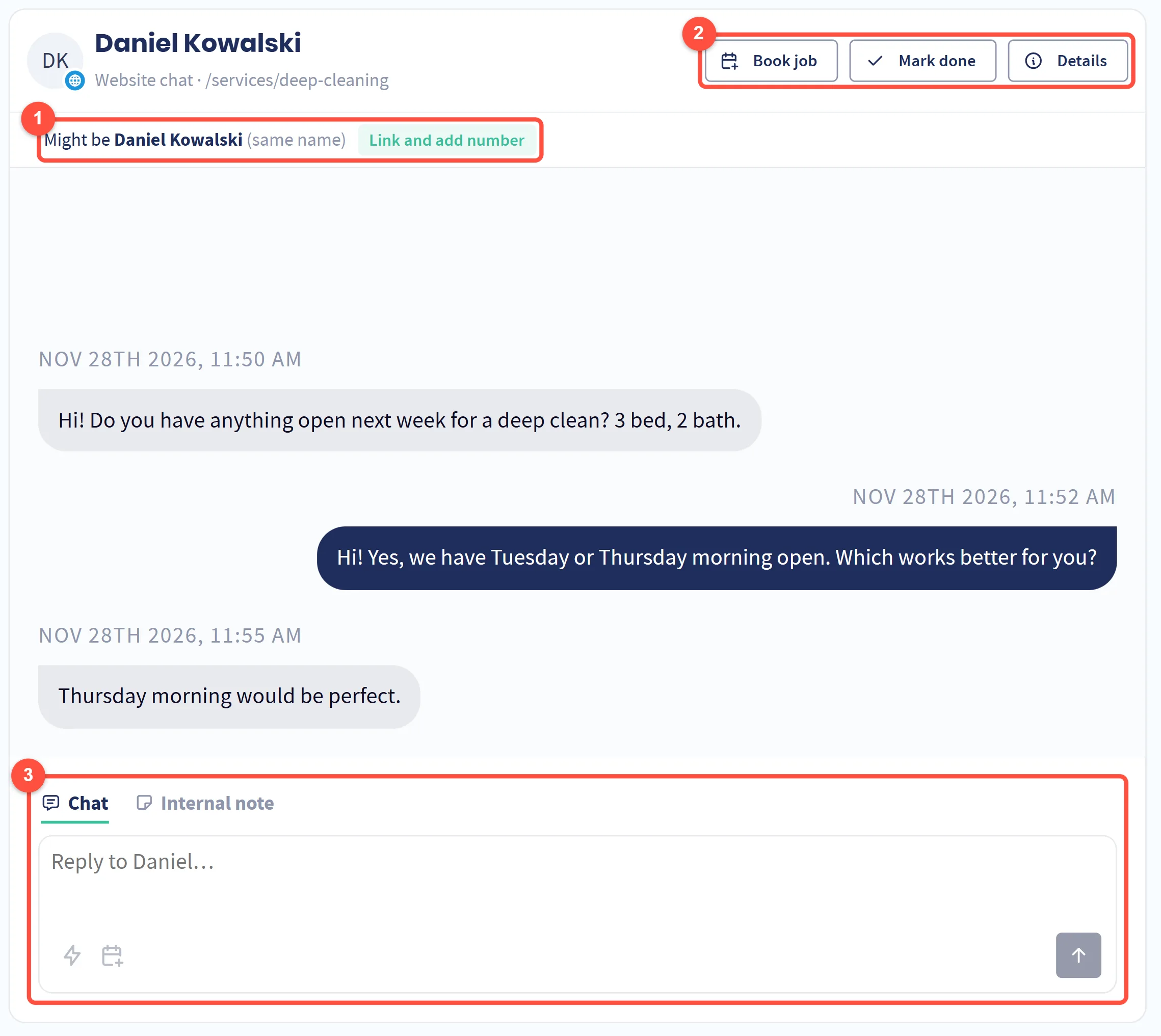
- When a visitor isn't linked to a customer yet, Servgrow suggests customers who might be them, with the same email or the same name. Click Link, or Link and add number to also save the visitor's mobile number on that customer.
- Book job starts a job for the visitor, Mark done moves the chat to Done, and Details shows who you're talking to.
- Write your reply under Chat. Switch to Internal note for a note only your team sees. Type / to insert one of your quick responses.
See who you're chatting with
Click Details in an open chat.
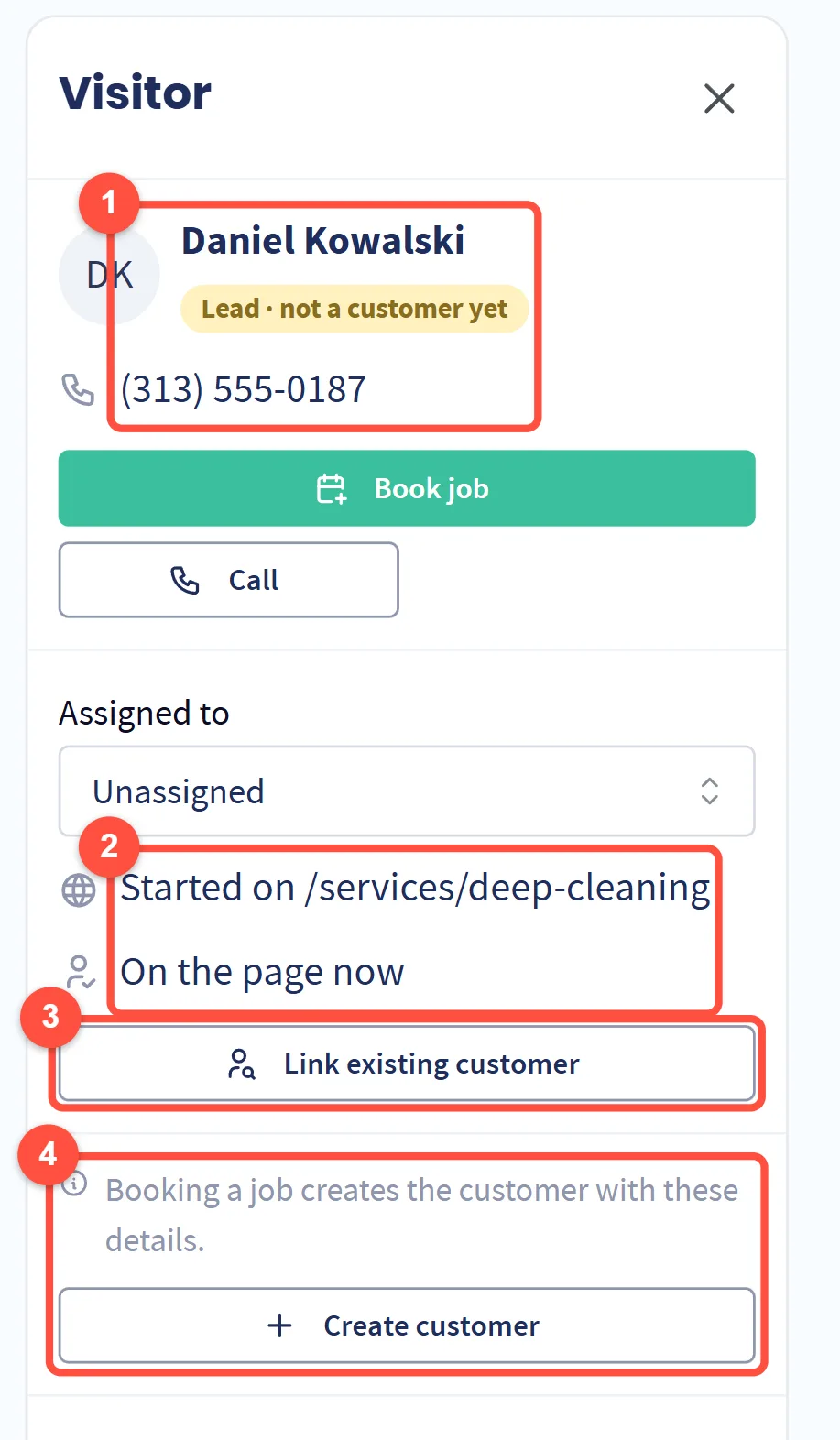
- The visitor's name and mobile number. Lead · not a customer yet means they aren't linked to a customer. Click Call to call them.
- The page they started the chat on, and whether they're still on it. If they left after giving a mobile number, you can text them. If they gave only an email, your replies go to their email. With neither, they'll see your reply only if they come back to your site.
- Link existing customer connects the chat to a customer you already have.
- Create customer adds them as a new customer. Booking a job does this for you, with the details they gave.
Under Assigned to, pick the teammate who should answer the chat. It then shows under Assigned to me for them.
Chats from customers you know link on their own
When a visitor's mobile number matches any phone number on a customer, not only their main number, the chat links to that customer by itself. You see their details and history right away.
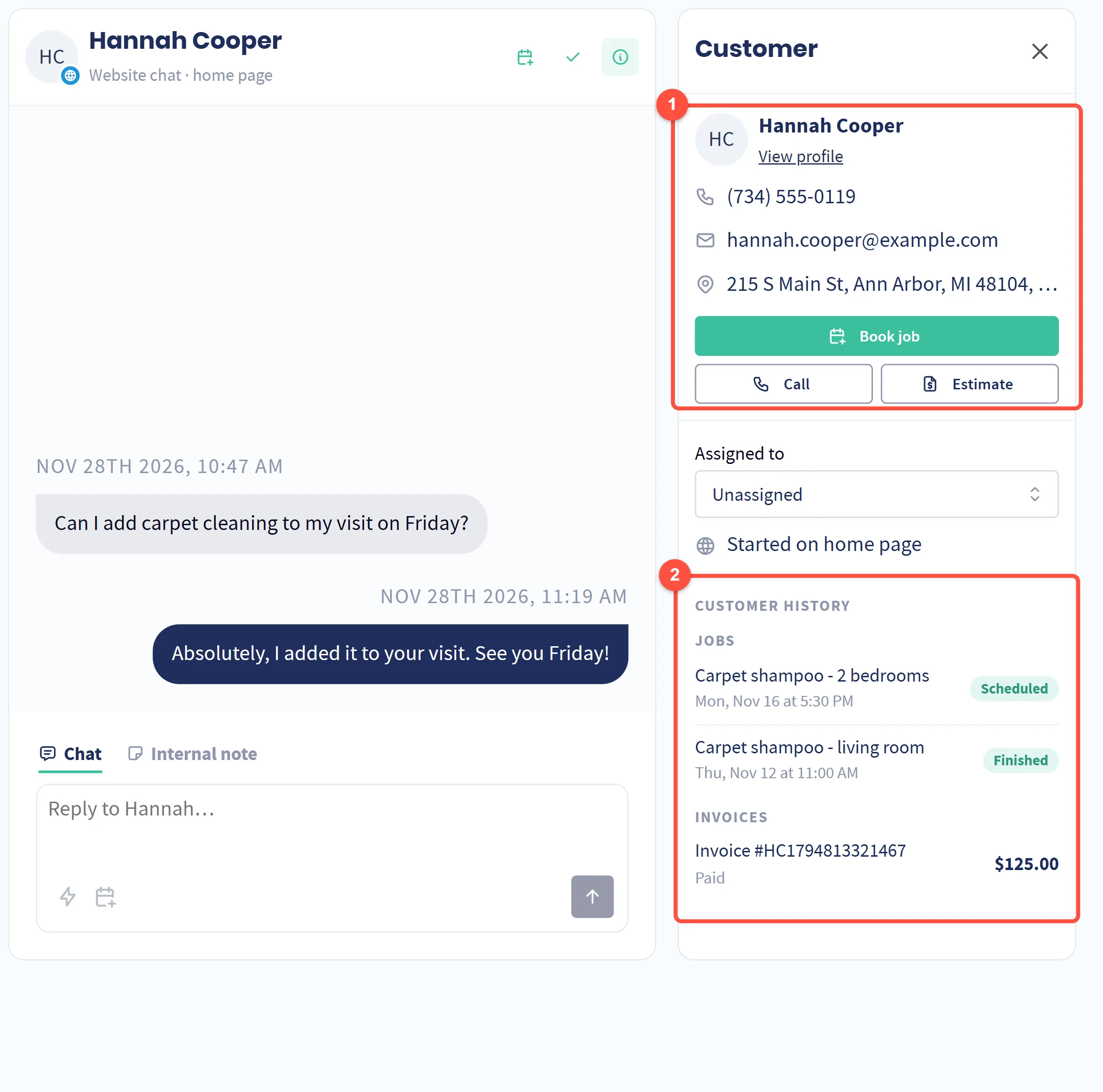
- The Customer panel shows their contact details, with View profile, Book job, Call and Estimate.
- Customer history lists their jobs, estimates and invoices.
Get alerted when a new chat comes in: in Settings, then Message Center, open My notifications and Desktop notifications. See Team Chat for how the Message Center works with your team.
Related articles
See the feature
Was this article helpful?